Guitar Kit has all you need for Guitar Chord Forms.
The most excellent Guitar Chord Form tool in the world, in your pocket!
You can search almost chord form and display it. Guitar Kit has enough huge preset library.
And you can create your original fingering forms.
Guitar Kit supports Slide Over and Split View on iPad, and provides the appropriate display and operation for iPhone and iPad.
For iPhone, iPod touch, iPad (Universal App).
Download from here.

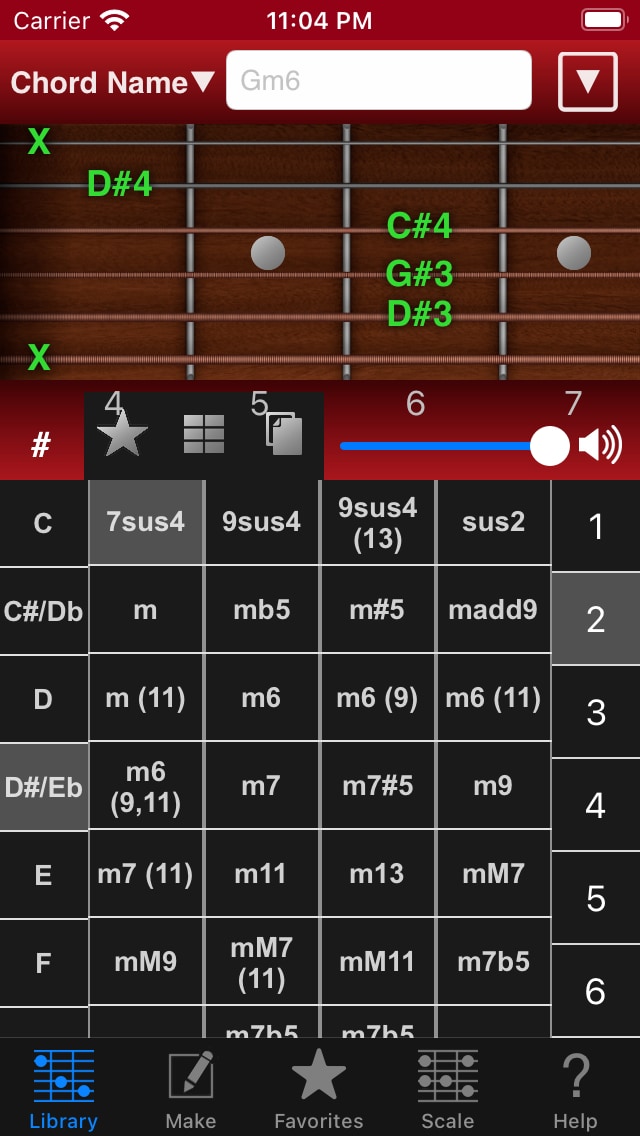
Guitar Kit has very large preset library, but you can view a target chord form so easily!
You can directly select a chord form by smooth scrolling Chord Picker or focus on a little chord forms by typing a part of chord name. You can search by various Enharmonic Equivalents.
If you tap the top guitar diagram, Guitar Kit play each note. And if you select a chord in the list or picker, play chord any times.
Favorites Tab allows to memory your favorite chord forms.
And Sheet allows to view more than one chord, so it’s especially convenient for you to confirm chord forms in specific song.
Sheet support Black and White mode, it looks like chord forms paper sheet. And if you select Dark Background mode, you can reduce the reflection of light even in the dark places such as the live venues.
Display doesn’t dim during working. It can be trusted to think other thing or play songs.
And you can handle multiple songs by “Export Native File” feature.
Make Tab allows you to create your original chord forms.
You can handle them as like preset library completely.
Of course you can add new chord form similar to existing chord form using Reproduce Form function easily.
And you can slide decided chord form to left or right. So you’ll be able to add chord forms changed Root note in succession.
Suggest Form function offers randomly new chord form contains selected notes.
And Guess Chord Name function suggests chord names by decided chord form or selected notes on 1 octave keyboard.
Scale Tab allows to show many popular scales.
And also you can find matched chords with a scale you selected.
You can change mode to left hand or right hand for all frets.
And you can toggle setting Note Name / Interval for each note.
You can back up data you’ve created to Mail, Dropbox, box, iCloud Drive and others. And you can restore it at any time.
And also, you can export Sheet Chord Forms as SMF(Standard MIDI File) to Mail, Dropbox, box, iCloud Drive and others, so you will be able to use as Chord Progression if you import it to your DAW.
By the way, Guitar Kit exports Chord Name as Marker.
If you handle Sheet by Guitar Kit only, “Export Native File” function is very easy. Even if some sheet chord forms don’t exist in Library Tab, Native File can be imported to Sheet exactly. It is like function open and save multiple songs.
Quick working and most beautiful Guitar Chord Form app “Guitar Kit” is very useful for you, exactly!
Advanced Option :
When you’ll buy this low price add-on, you can use more Chords and Scales. It will provide a complete set usually.
—
If you have some ideas, some wishes or some questions, please send mail to this address<hidenoridev@therootage.com>.
- Changes note (another page)
—
Guitar Kit Help
Table of Contents
- Library Tab
- Make Tab
- Favorites Tab
- Sheet View
- Scale Tab
- Help Tab
- Sheet View
- Title Menu
- Direct Menu (non-Edit mode)
- Name Menu (Edit mode)
- Beat Menu
- About Chord Name
- Settings View
- Export
- Import
—
Library Tab
Search fingering form by Chord and display it.
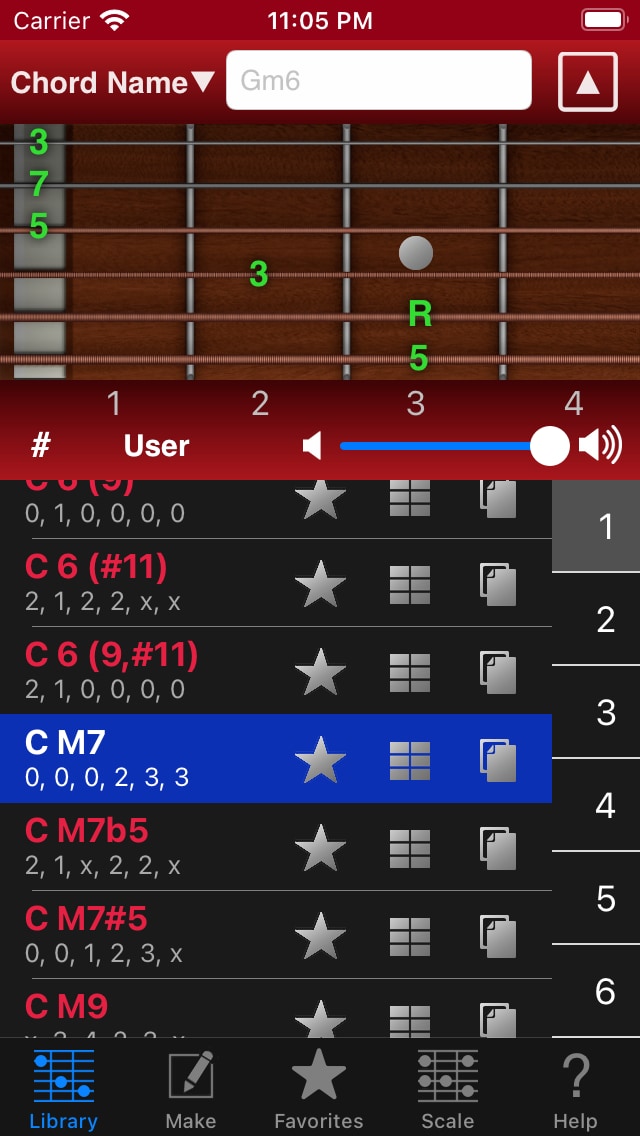
If you type a part of chord name on the top text field, you can focus bottom chord forms list.
And if you tap button beside chord name text field, display Chord Picker you can select a chord very easily. Root and Chord Name Cells are scrollable. Most right buttons (1-6) are Position.
By the way, because of the ease of input Name (Chord/Note), respectively sharp and flat, Guitar Kit use # (Shift-3) and b (Small B).
If you tap button beside chord name text field again , you can hide this picker.
When you select any chord by list or picker, Guitar Kit play chord sounds.
- You can play one note by tapping each string on guitar diagram.
- You can change accidental by tapping “#” or “b” button.
- By tapping left or right icon beside volume slider, You can change volume to mute or max.
- When you tap “User” button, scroll to your original chord form in bottom list. If you create original fingering forms (User Chord Forms) by Make Tab, they are added after preset forms.
- “★” Favorites button : You can memory the chord form in Favorites Tab.
 Sheet button : You can add to Sheet View in Favorites Tab.
 Reproduce button : You can easily make new chord forms with an already existing chord form. When you tap this, open Make Tab and already selecting each frets. By selecting other frets, you can make new arranged chord form instantly.
- If there are locked icons in the cell, you can use those chord forms by purchasing “Advanced Option” (In-App Purchase).
 Sheet button : You can add to Sheet View in Favorites Tab.
 Reproduce button : You can easily make new chord forms with an already existing chord form. When you tap this, open Make Tab and already selecting each frets. By selecting other frets, you can make new arranged chord form instantly.
If you press and hold on the guitar diagram, you can change display Note Name / Interval on the fly. You can use this feature, in same scene on other Tabs.
If you press and hold on chord form list, you can change display Note Name / Interval on the fly. You can use this feature, in same scene on other Tabs. (However, give priority to drag gesture in Edit Mode.)
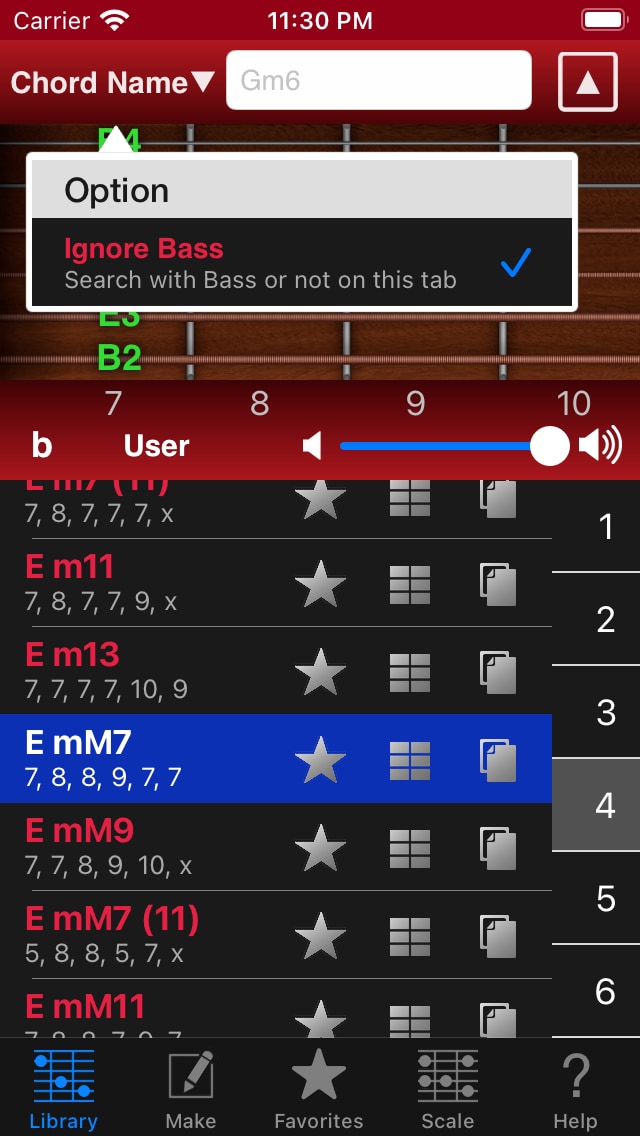
Initial setting ignore the specific bass note in searching. For example, if you enter Gm7/B, it’ll be the same as are searching for Gm7. This will help you add to new chord form as Gm7/B. Select one of chord form of presetting Gm7, and then if you tap Reproduce button, you can add or exchange bass note in Make Tab. At this time, when you press and hold 1 octave keyboard in Make Tab, It will help that it is now possible to add note without clearing middle diagram decided notes.
Make Tab
You can create original chord forms. (User Chord Forms)
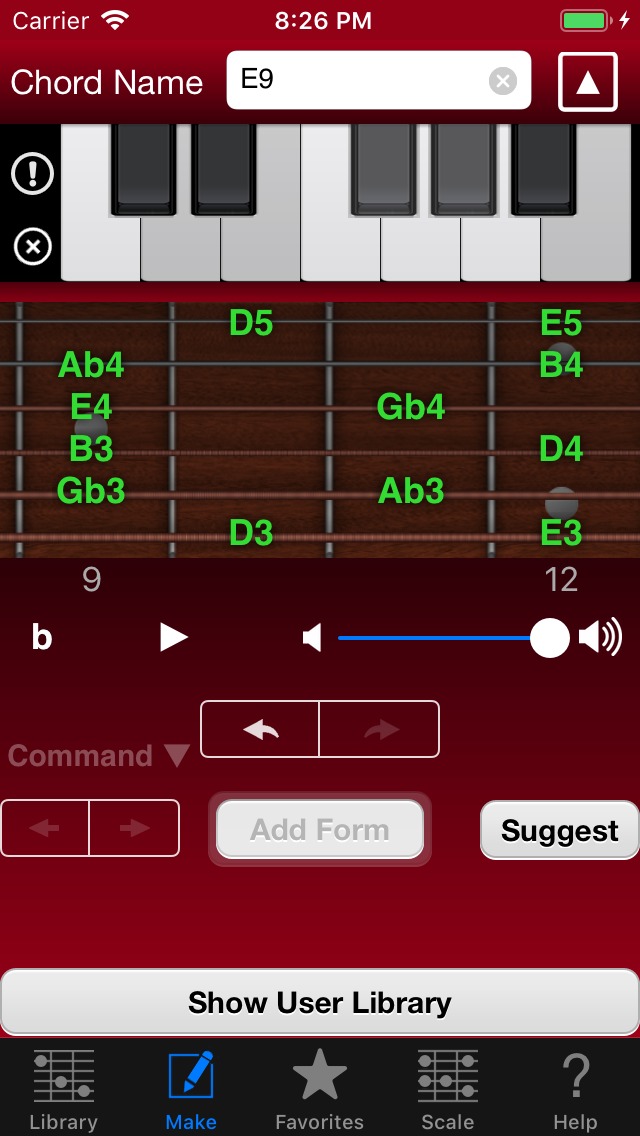
As like Library Tab, there are input fields in above place. You can input chord name in text filed or select by picker or tap some notes at 1 octave keyboard. As result, selected some notes at keyboard and display note names as green color on the guitar diagram.
Text field supports incremental search. So you can input chord name easily.
You can scroll middle guitar diagram horizontally.
When you tap green color note name, you decide its fret on this string. So changed color to blue.
When you tap without showing named frets, you can mute this string.
As following picture, you decide all strings (all are blue color), now you can tap “Add Form” button.
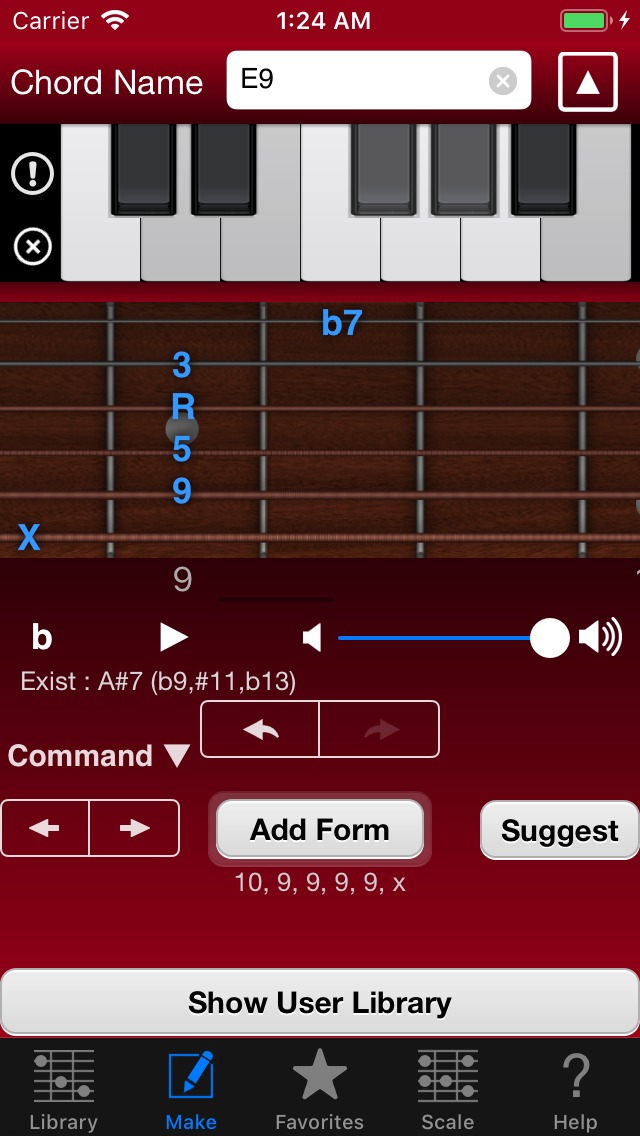
- Please refer to Library Tab section for basic part.
- If there is same chord form in the Library, display “Exist :”. And show these chord names. So you can avoid adding same forms.
- If you tap ▶︎, you can play editing chord sound anytime.
- You can slide decided chord form to left or right by tapping “<-” “->” button. This is convenient, if you would like to add chord forms changed Root note in succession. (ex. CM7 -> C#M7 -> DM7…)
- When you tap decided blue color note, you can play one note repeat any times. If you decided all strings, you can play chord sound repeat any times by tapping blue note name or muted string.
- Chord Picker on Make Tab allows you to select specific bass note in the right part.
- If you press and hold on 1 octave keyboard, you can add or remove specific note without clearing notes on middle diagram.
- Suggest Form function. If you tap “Suggest” button, Guitar Kit offers new chord form randomly contains notes selected at 1 octave keyboard.
- If you tap “Command▼”, you can octave up or down decided chord form. You can select to move fret 0 (open note) or not.
- You can use unlimited undo or redo function by tap middle arrow buttons.
When you tap “Add Form” button, comes to following display.
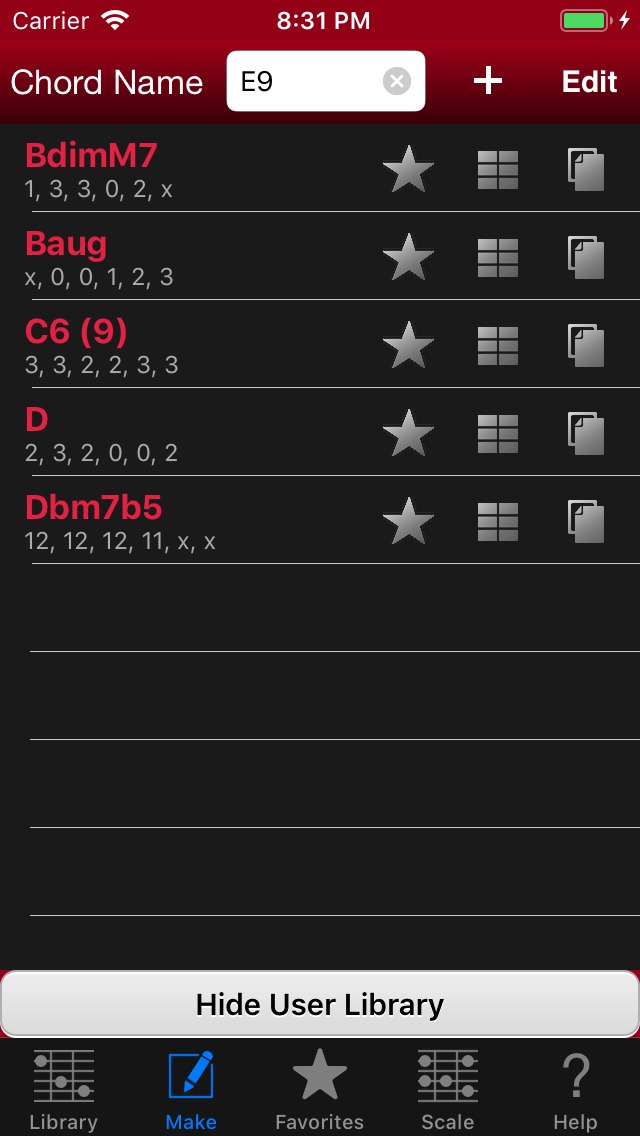
If you’d like to change chord name, you can do it. And when you tap “+” button, you add this chord form really.
By tapping “Edit” button, you can delete or change order. After modification, please tap “Done” button.
In Edit mode, you can modify your user chord form name, if you tap its chord name.
You can hide this by tapping bottom “Hide User Library” button.
Always you can modify user library by tapping bottom “Show User Library” button. And you can play chord by tapping in the list.
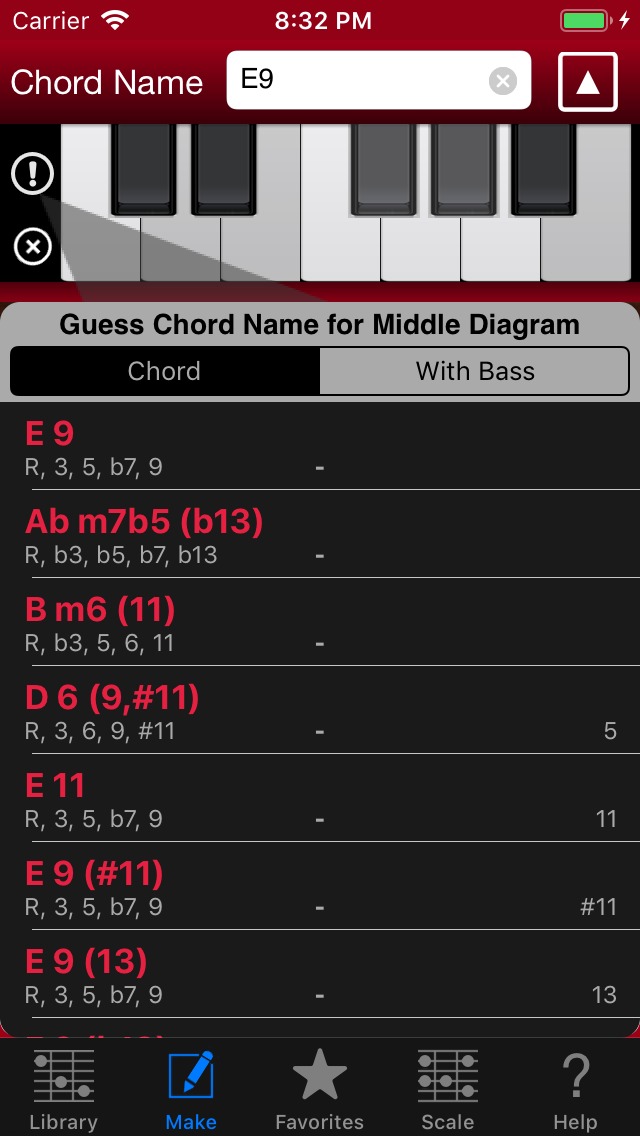
By tapping “X” button on 1 octave keyboard, you can deselect all notes.
Tips:
If already deselected all notes, you can select all notes by tapping “X” button.
When you tap strings on middle diagram in this condition, you can know its chord name using Guess Chord Name function easily.
” ! ” button is Guess Chord Name function. If some frets are decided (blue color), Guitar Kit guess chord names for frets. And if there is non-decided string (green color), Guitar Kit suggest chord names for notes selected on 1 octave keyboard.
left side is used notes. right side is unused notes. Normally chord have less unused note names is better.
You can select “with Bass” option. This lists chord names of the case where the bottom note of middle diagram is specific bass.
By tapping guessed chord name, you can replace only chord name text field without changing selected notes.
Guess Chord Name lists are displayed from beginning on the iPad. Right side of 1 octave keyboard or below the middle guitar diagram. And contents are updated real time.
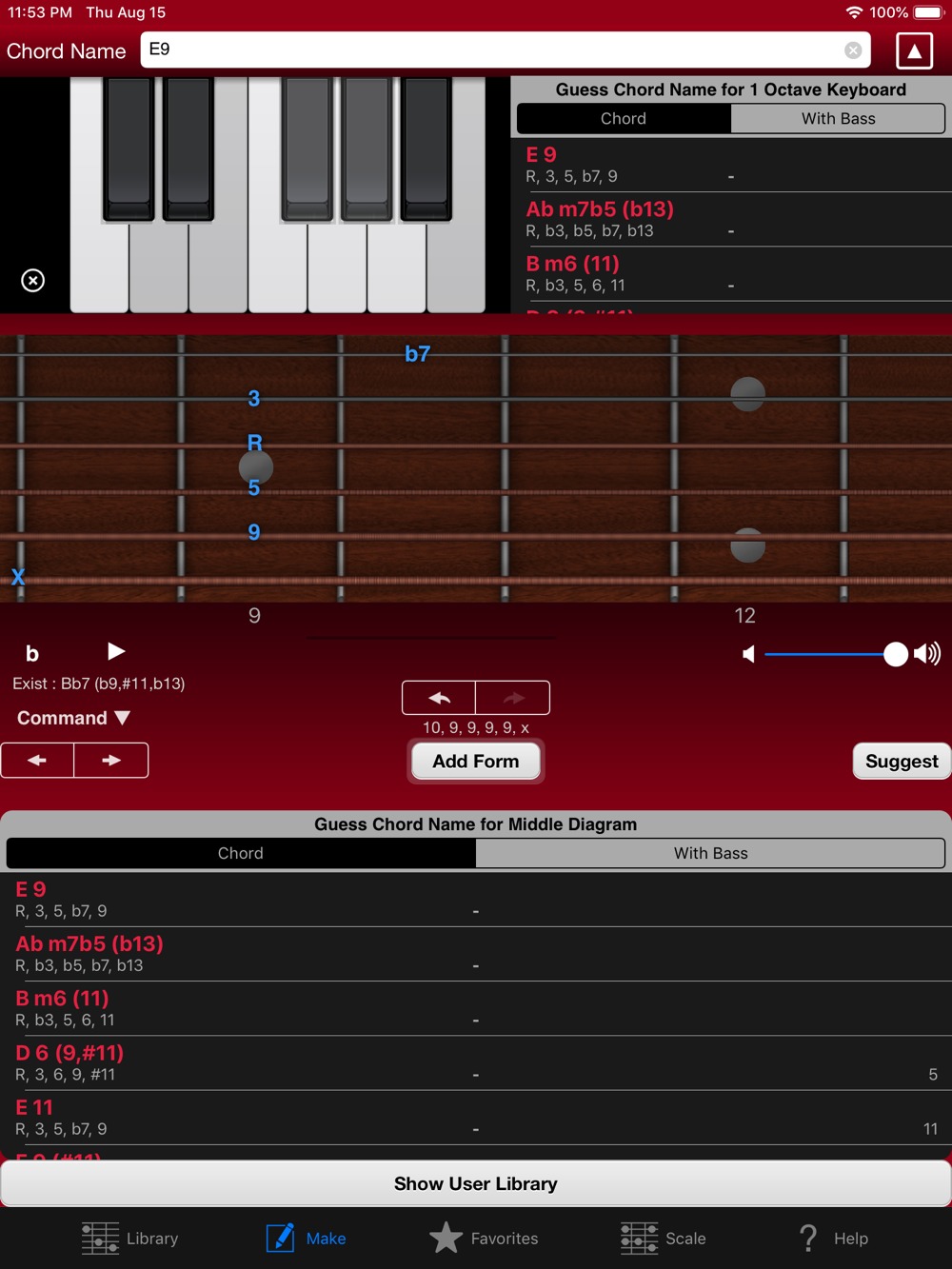
There is a indicator of editing chord form above “Add Form” button.
If you press and hold Guess Chord Name list, you can change display Note Name / Interval.
Favorites Tab
You can memory your favorite chord forms. You can access those chord forms very quickly.
Basically almost same, so read Library Tab.
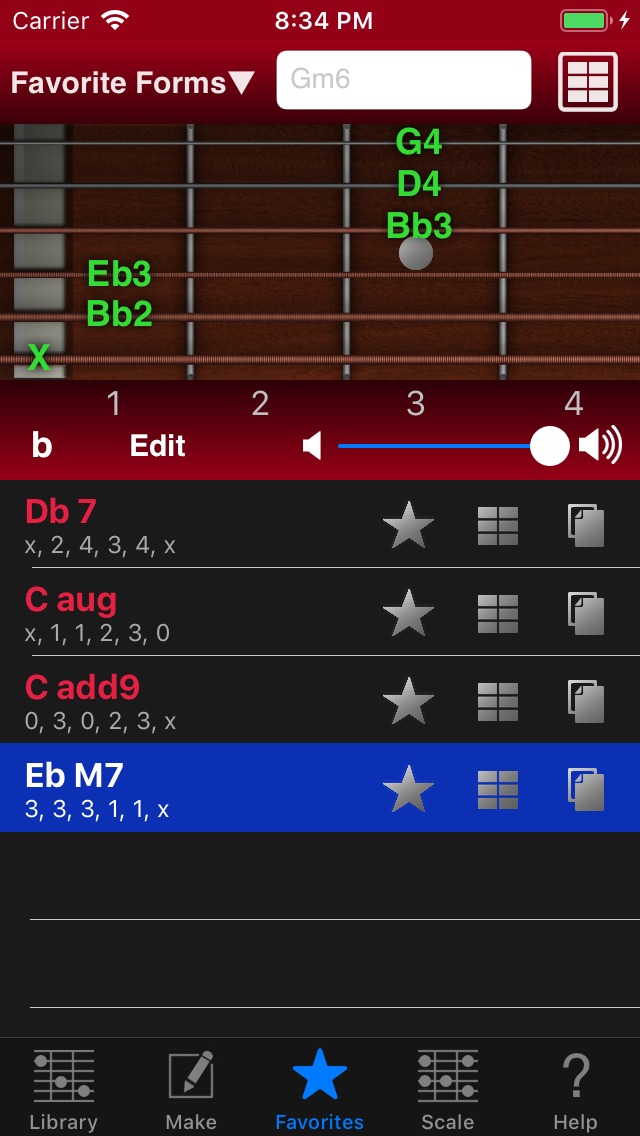
If you’d like to edit this list, simply tap “Edit” button.
You can show Sheet View by tapping right top button.
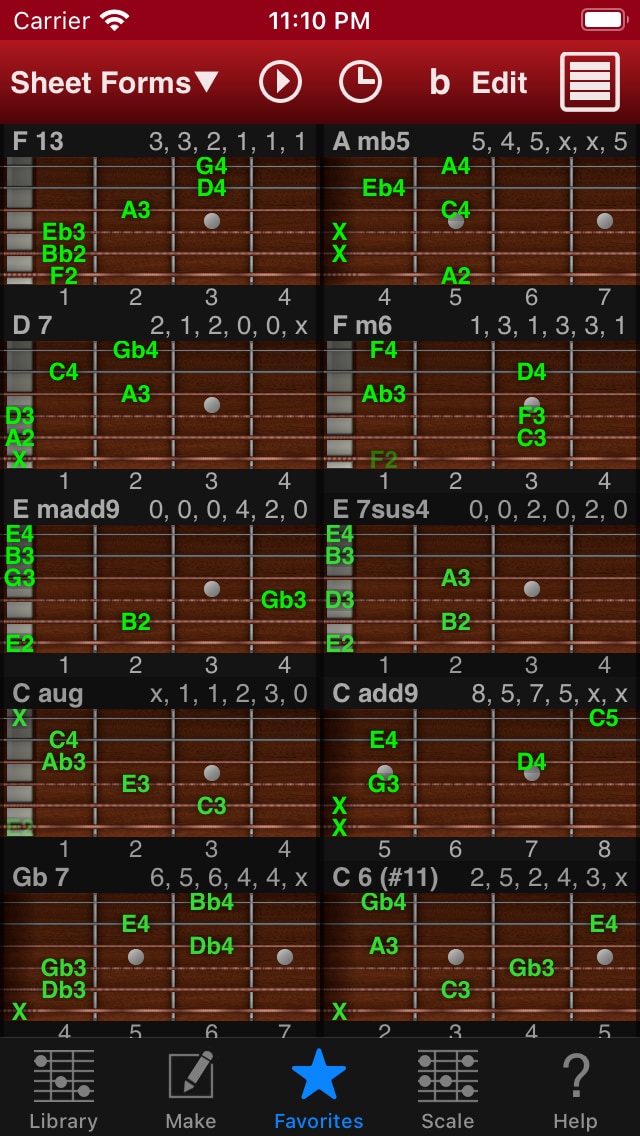
Sheet display Chord Forms List. You can easily compare each other. And temporally stocking for chord forms using specific song is good idea.
Sheet View has many features, so it is described as a separate section later.
You can go back to Favorite Chord Forms by tapping top right button again.
Scale Tab
Scale Tab allow to view many popular scales.
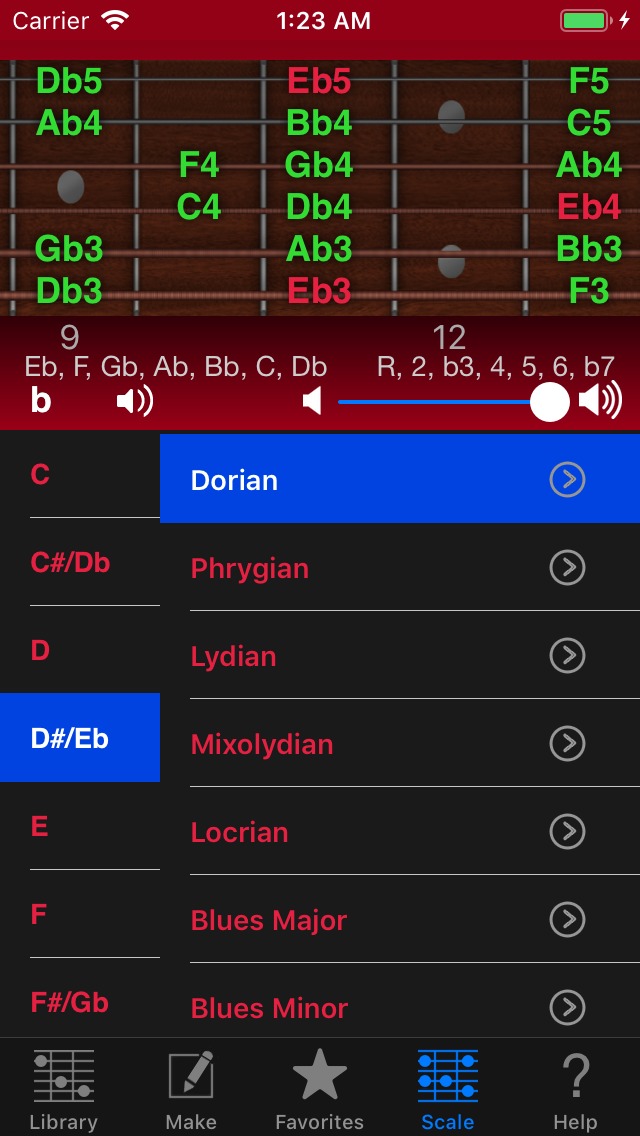
When you select Root note and any scale, display note names at top guitar frets diagram. You can view scale positions.
Guitar diagram is scrollable horizontally. You can listen sound the note at tapped position.
If you tap left speaker icon, Automatic sound play function toggle ON/OFF.
Major scales
- Ionian (Major) – Normal Major Scale
- Major Pentatonic – without 4, 7
Minor scales
- Aeolian (Natural Minor) – Normal Minor Scale
- Harmonic Minor – Upped 7 for going easily to root
- Melodic Minor – Upped 7 and 6 too for constant melody interval
- Minor Pentatonic – Minor without 2, 6
The 7 modes
- Dorian – C major scale played from “D” is a D Dorian scale
- Phrygian – C major scale played from “E” is an E Phrygian scale
- Lydian – C major scale played from “F” is an F Lydian scale
- Mixolydian – C major scale played from “G” is a G Mixolydian scale
- Locrian – C major scale played from “B” is a B Locrian scale
Misc
- Blues Major – Major pentatonic scale, but with an additional lowered fifth.
- Blues Minor – Called Blues Scale. Minor pentatonic scale, but with an additional lowered fifth. The lowered fifth, also known as the “blue note”
- Lydian b7 – Lydian b7 is Lydian scale with a lowered seventh
- 8-tone whole first – The diminished scale. Alternating whole step and half step intervals. Whole-step-first.
- 8-tone half first – The diminished scale. Alternating whole step and half step intervals. Half-step-first.
If you purchase “Advanced Option” (In-App Purchase), you can use following Scales.
Symmetrical Scales
- Half diminished – Locrian natural 2. the scale is associated with dim7b5.
- Whole tone – Each note is separated from its neighbors by the interval of a whole step
- Augmented – interlocking combination of two augmented triads: Caug and Ebaug
- Double Harmonic – symmetry around its root
- Bebop Dominant – Major with b7
Local Scales
- Gospel – C Gospel = A Blues Minor. Major Pentatonic with b3
- Eight Tone Spanish – Locrian with 3
- Pelog – Locrian with 7 without 4, b6. one of the two essential scales of gamelan music
- Hungary – Harmonic minor #4
- Ukrainian Dorian – Dorian mode with a raised fourth
- Spanish – Phrygian mode with an additional Major 3rd
- Flamenco – Major b2, b6
- Gypsy – Natural minor #4
- Hawaiian – Major Pentatonic b3
- Hirajoshi – Minor without 4, 7
- Miyako-bushi – Phrygian without 3, 7
- Ryukyu – Major without 2, 6
When you tap “>” button beside each scale name, you can view chords list matched with its scale.
Match View
It shows chords list matched with its scale.
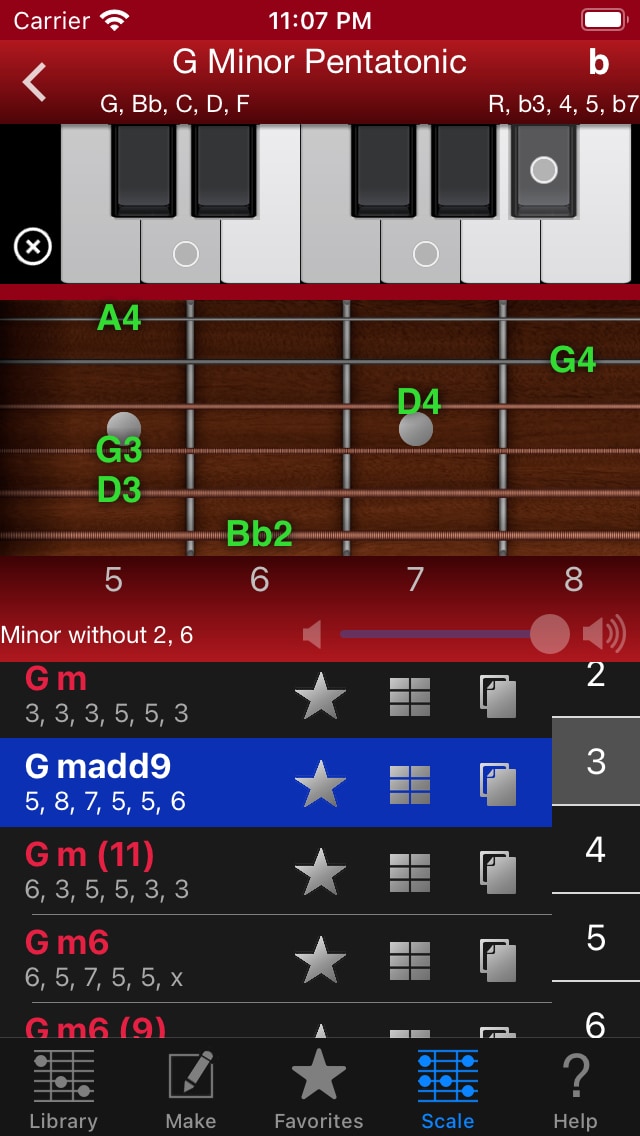
Top 1 octave keyboard shows scale note as gray color. Please tap use notes on the top keyboard in your song’s part. They show circle dots and display bottom chords list matched your scale notes.
You can operate this view as like Library Tab.
By tapping “<” button, you can go back Scale lists.
Help Tab
This Tab provide Setting, In-App Purchase, Help and Other Apps.
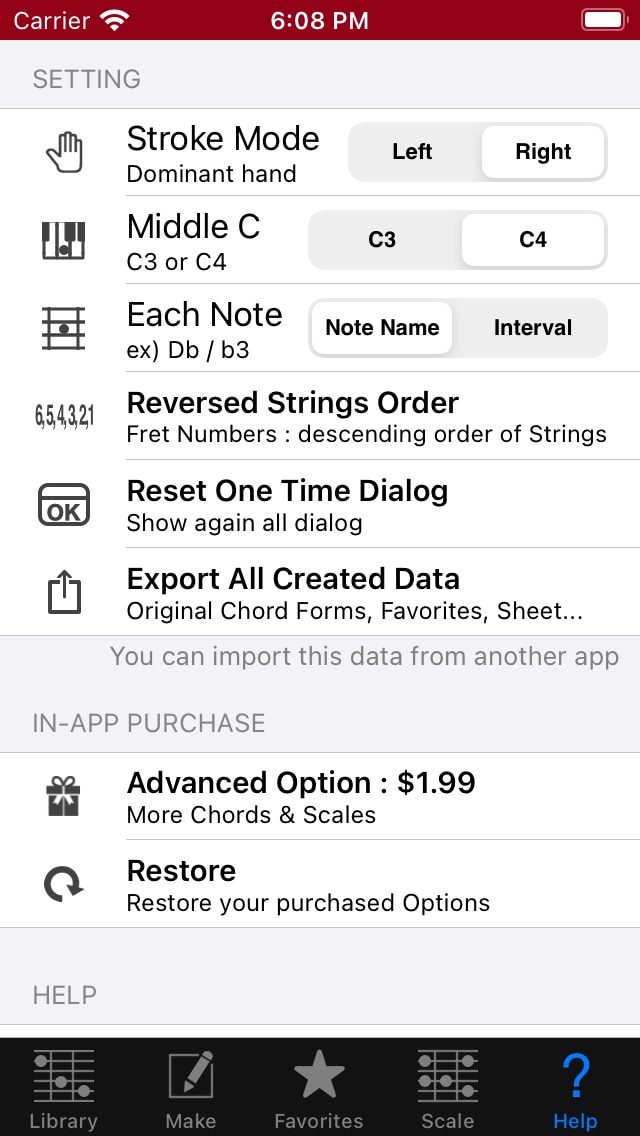
Setting
- Stroke Mode
- You can select left hand or right hand.
- Middle C
- Change Middle C to C3 / C4.
- Each Note
- Change display for guitar fret’s note to Note Name / Interval.
- Even if you don’t set it here, you can change it by long press gesture on the diagram or each chords list.
- Reversed Strings Order
- Frets are displayed in order from the thickest string to the thinnest string. (ex. C 1st position: 0, 1, 0, 2, 3, 3 -> 3, 3, 2, 0, 1, 0)
- Reset One Time Dialog
- Show again all dialogs. Almost one time dialog show hints.
- Export All Created Data
In-App Purchase
- Advanced Option
- You can use more Chords & Scales.
- Restore
- You can restore the purchased option in this app.
※ if you’ll show the display of the re-purchase, you’ll should be feel at ease, normally you’ll not purchase twice.
Help
- Simple Help Text
- Display simple help text. Text is scrollable.
- Support Page
- You can see the support page in Safari.
- Mail
- You can send mails to the developer.
If you have some ideas, some wishes or some questions, please send mail.
- You can send mails to the developer.
- Rate This App in App Store
- Open Guitar Kit’s page in App Store. You can rate this app and review one for next download people.
(If you have any troubles about this app, please send mail instead of this function. Because we need detail informations for resolving those problems.)
- Open Guitar Kit’s page in App Store. You can rate this app and review one for next download people.
- Written Guitar Kit version number at right bottom.
Other Apps
Open other apps in App Store.
You can use Guitar Kit and Piano Kit as companion apps for Chord NOTE. Piano Kit and Guitar Kit can show selected all Chords in Chord NOTE.
Moreover, Chord NOTE, Guitar Kit, Piano Kit are part of “Chord Scale Bungle”. If you purchase these 3 apps, you’ll be saved money.
Sheet View
Sheet display Chord Form List. This View includes various options and commands.
You can easily compare each other. And this is useful for displaying chord forms used for a song or for rough sketching of chord progressions.
Sheet has many functions.
You can switch the display with right top Sheet button on Favorite Tab.
You can enter Edit mode by tapping right top Edit button.
When you’re done editing, you can return to non-Edit mode with tapping Done button.
If you tap ▶︎ (Play button), Guitar Kit play Sheet as chord progression. Please tap it again to stop sound.
You can show Play Settings and Export Settings by tapping Clock button.
Title Menu
If you tap left top “Sheet Forms▼”, you can show Title Menu.
Tips: you can undo by swipe left gesture and redo by swipe right gesture on “Sheet Forms▼”
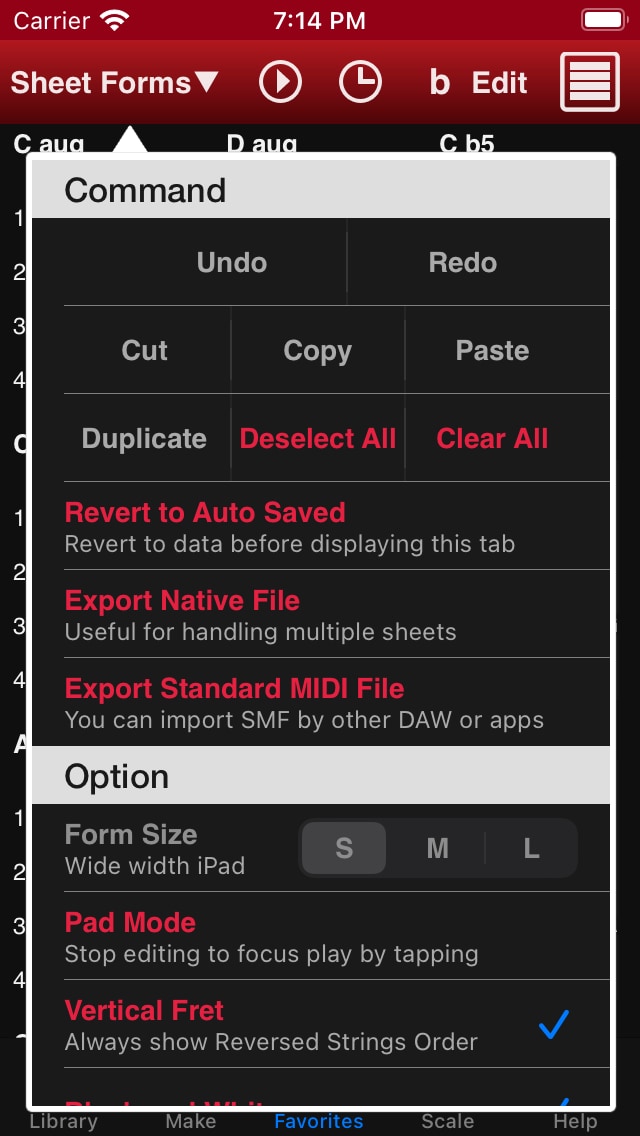
- Command
- Undo, Redo
- Cut, Copy and Paste
- When you paste a chord form that you was cut or copied, you can add it to after selected chord form.
- You can interact with Chord Form in Sheet View of Piano Kit (another app) and a chord in Chord Progression of Chord NOTE (another app)
- Duplicate, Deselect, Clear All
- Duplicate the selected chord form. The chord form will be added to bottom.
- Deselect all chord forms.
- Clear all chord forms immediately .
- Revert to Auto Saved
- Revert Sheet and settings to Auto Saved version at once.
- Guitar Kit save automatically, when you leave Favorites Tab. So you can revert to Auto Saved as long as you don’t move to other Tabs.
- Export Native File
- Export Standard MIDI File
- Show Export Settings to set options for Sheet’s SMF. You can export SMF by tapping the bottom button of Export Settings.
- Option
- Form Size
- If app width is wide on iPad, you can select diagram size from S, M, L to utilize big display.
- Pad Mode
- You can play chord sound by touching any part of each Chord Form.
In other words, you can focus playing by tapping without worrying about showing menu for editing.
Tips: You can immediately know Pad Mode is ON by checking whether upper right Edit button is Disable (dimmed) when Sheet Play is stopped.
- You can play chord sound by touching any part of each Chord Form.
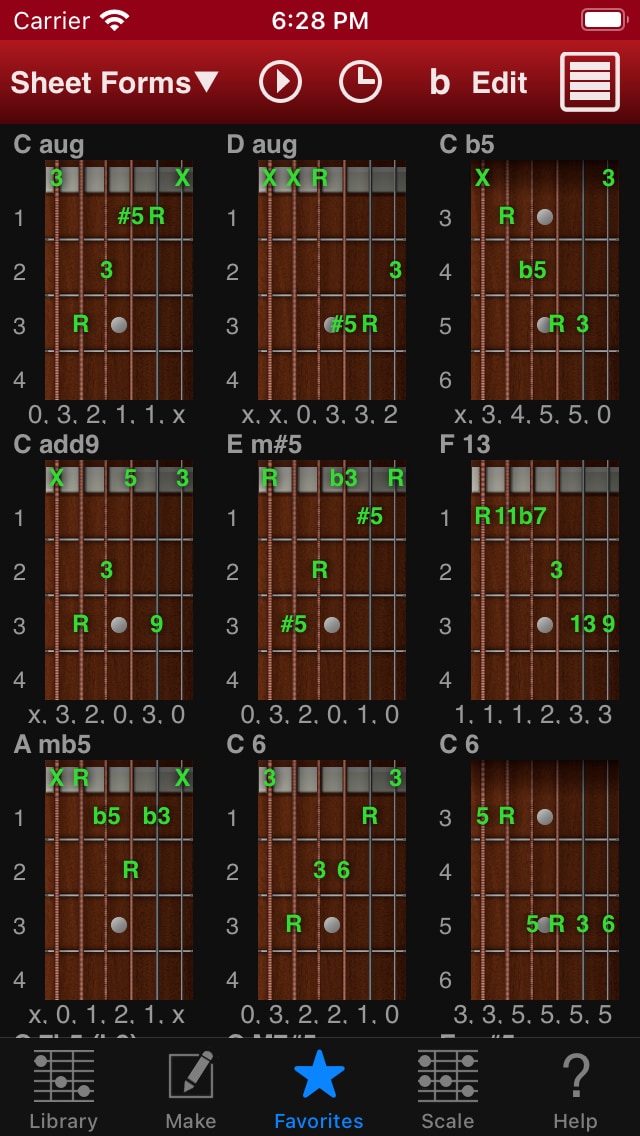
- Vertical Fret
- Display the fret vertically. At this time, the display of Fret Numbers is automatically applied Reversed Strings Order option.
- Black and White
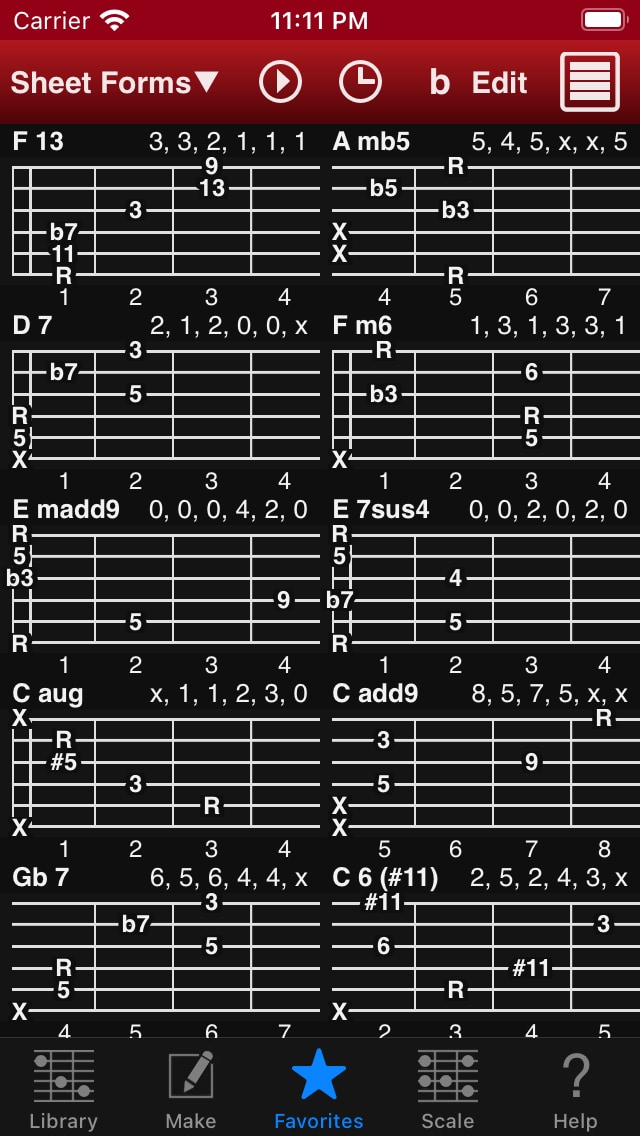
- It shows a series of chord form diagrams like a paper sheet.
- Dark Background
- Makes the background black in Black and White mode. Suppresses light leakage in dark places.
- Show Omit as Mute
- Omitted notes are showed as X instead of dim.
- Show Popup Mark
- Show or Hide “▼” mark in non-Edit Mode.
- Show Selected Background
- Painted background of selected chord form gray color.
- Form Size
Black and White mode
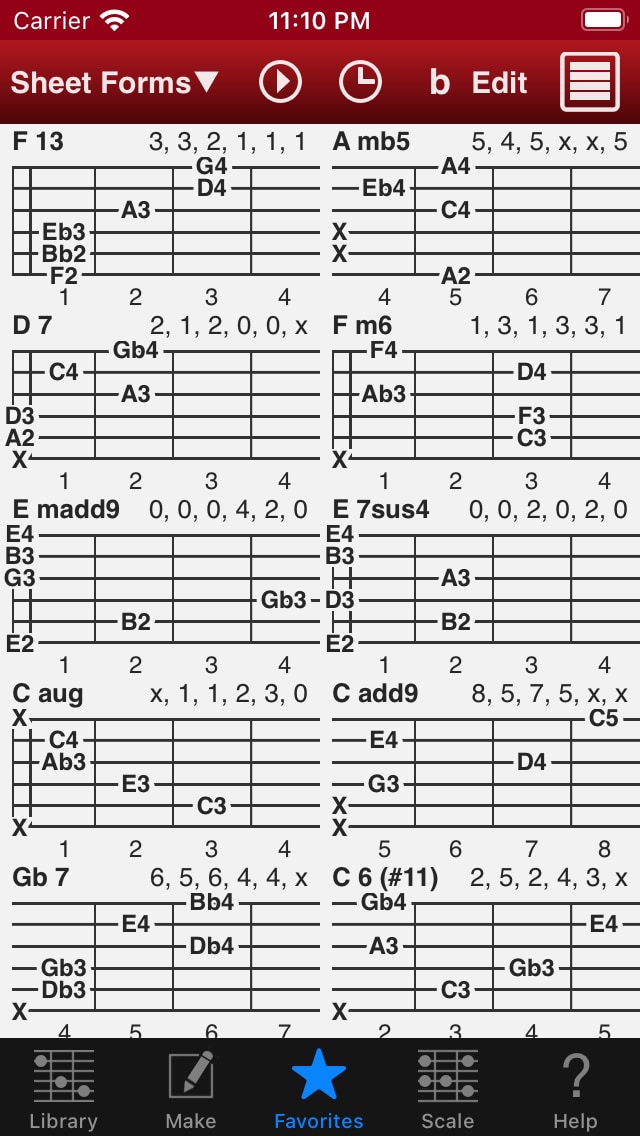
Black and White, Dark Background mode
Vertical Fret mode with Color mode. (Of course, you can select Black and White mode and Dark background mode in Vertical Fret mode.)
If you tap “Chord Name▼” in a chord form, Guitar Kit shows Direct Menu (non-Edit mode) or Name Menu (Edit mode). Direct Menu offers light modifications and Name Menu offers deep modifications.
Direct Menu (non-Edit mode)
You can change Chord Name and directly edit constituted notes of the chord by tapping guitar diagram.
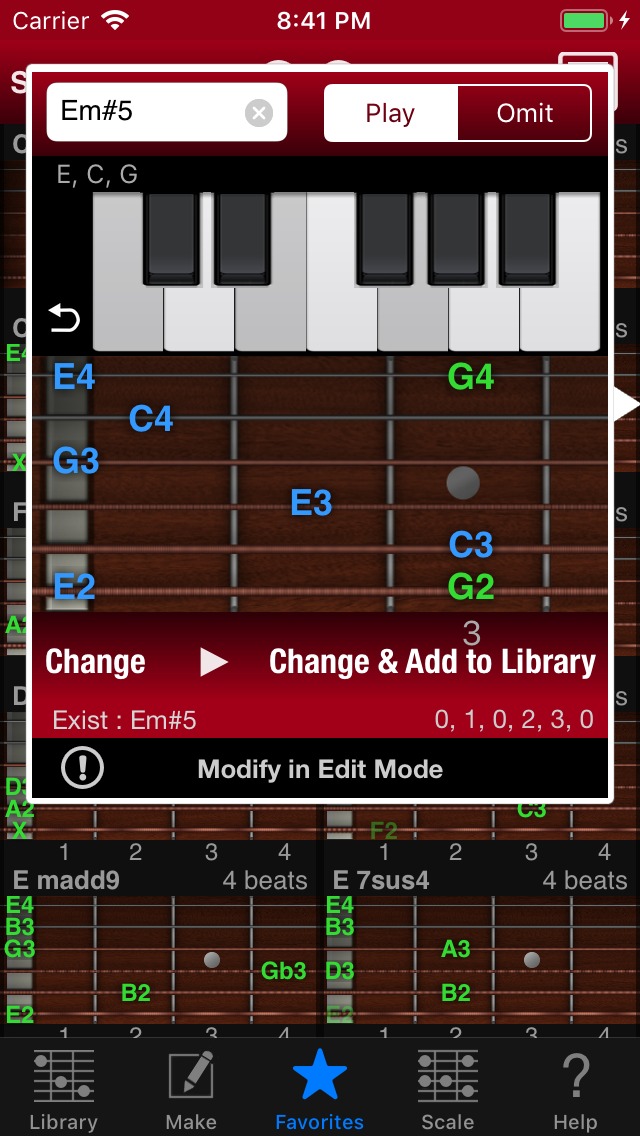
If you select “Omit” and tap any string, you can set the note to omit (Temporal Mute). It plays no sound.
If it shows “Exist :”, that chord form is already registered in Library Tab. You can replace chord form of sheet by tapping “Change” button.
If it doesn’t show “Exist :”, that chord form is not registered in Library Tab. If you’d like to import as SMF after exporting, showing dialog suggests tapping “Change & Add to Library” button.
If the chord form is not registered in Library, it shows empty chord form or one without specific bass after importing SMF. So you need to show Direct Menu (already selected imported notes) or Name Menu, and edit guitar diagram by tapping, and tap “Change” or “Change & Add to Library” button.
Left bottom “ ! ” button is Guess Chord Name function. If you tap one of guessed chord names list, you can change chord name. Please tap right top Done button on Direct Menu to hide this list.
Name Menu (Edit mode)
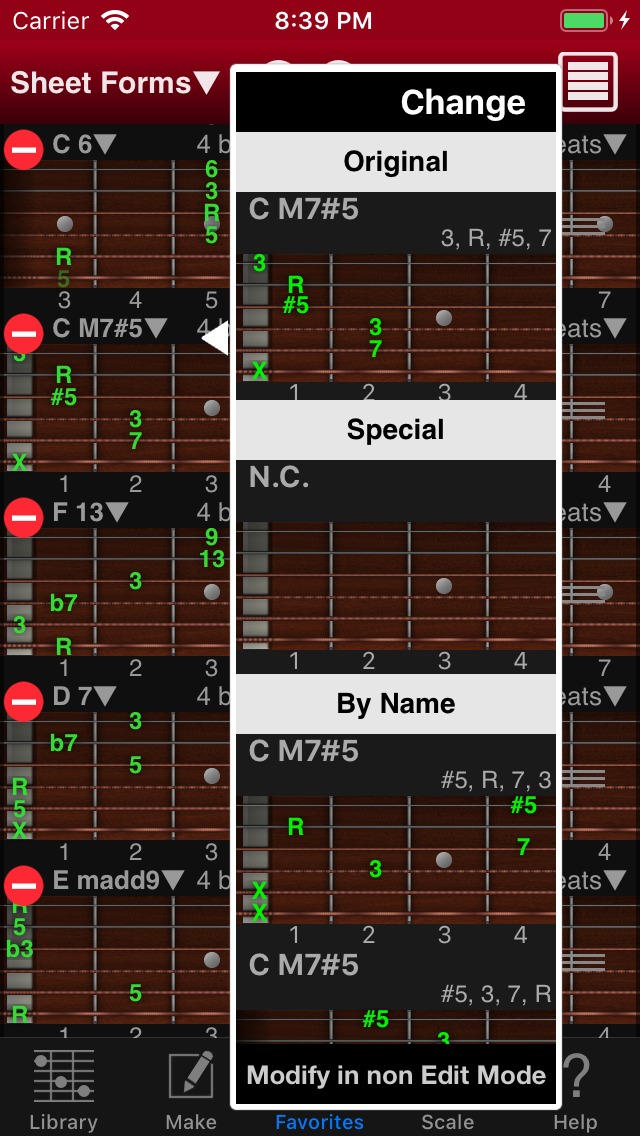
You can change chord form to rule such as N.C. / By Name / By Same Note / Similar Note (Move, Remove Add).
N.C. is None Chord. Guitar Kit play no sound.
Similar Note is chords that move 1 note, delete 1 note and add 1 note.
You can try hear chord sound by tapping guitar diagram. Really you decide, please tap upper “Change” button.
You’d like to cancel, please tap outside of Name Menu.
Beat Menu
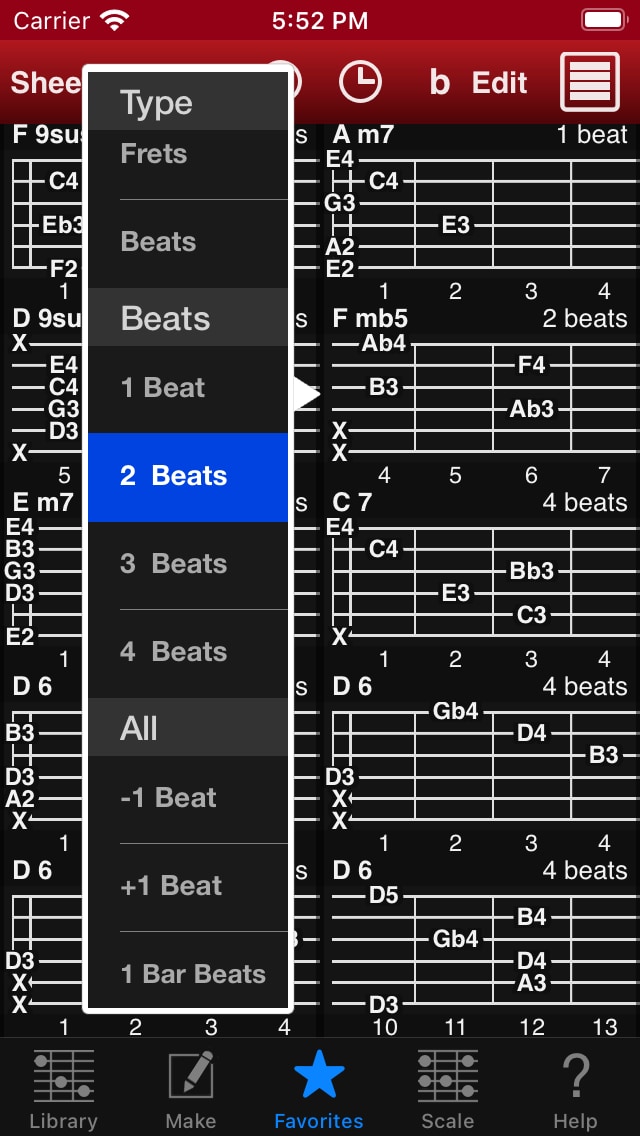
You can change display for right upper text to (None / Frets / Beats) and change beat counts of playing. You can also reset the number of beats in all chord forms to the number of beats in one bar.
About Chord Name
You can change chord name to any text. Guitar Kit is flexible. However, the idea that follow Chord NOTE style is useful.
It is very simple.
For example, you type “GM7/B [IV]”.
This resolve into Root (first 1 or 2 characters), Chord Name (Chord Symbol), Bass (after slash), Comment (after space & [).
In this case, Root : G , Chord Symbol : M7 , Bass : B , Comment : IV.
- Lowercase and uppercase are different text. For example, M is major, m is minor.
- You cannot omit “(” and “)”. These have an important meaning in chord name.
- You don’t have to worry about space character without comment symbol ” [“. (space and square brackets)
Yes, it’s almost same as music theory. The only special practice is the 3) comment symbol.
By the way, because of the ease of input name, respectively sharp and flat, Chord NOTE use # (Shift-3) and b (Small B).
If you use this Chord NOTE style, you can use it to search on Chord NOTE, Guitar Kit and Piano Kit without any modifications.
Settings View
You can show Play Settings and Export Settings by tapping clock icon on Sheet View.
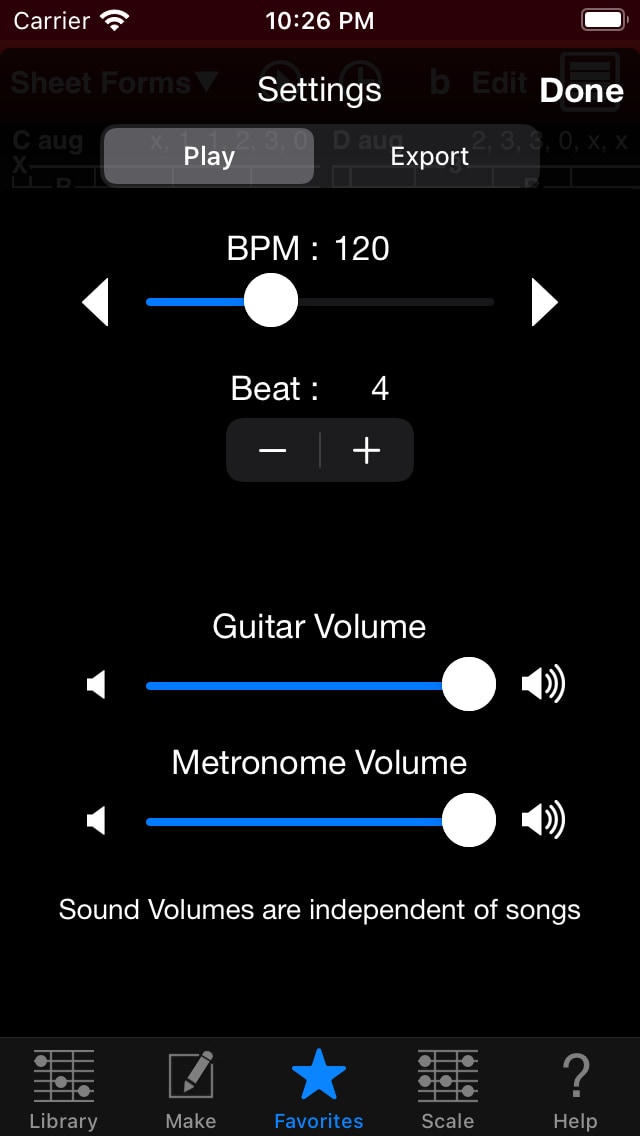
Play Settings
- BPM
- Beat count per 1 minute (about denominator of Time Signature is 4)
- Beat
- Beat count per 1 Bar
- You can change up to 99. If you press and hold ” – ” ” + “, can change continuously.
- Guitar Volume, Metronome Volume
- You can set the volume of chords sound and the click sound.
Export Settings
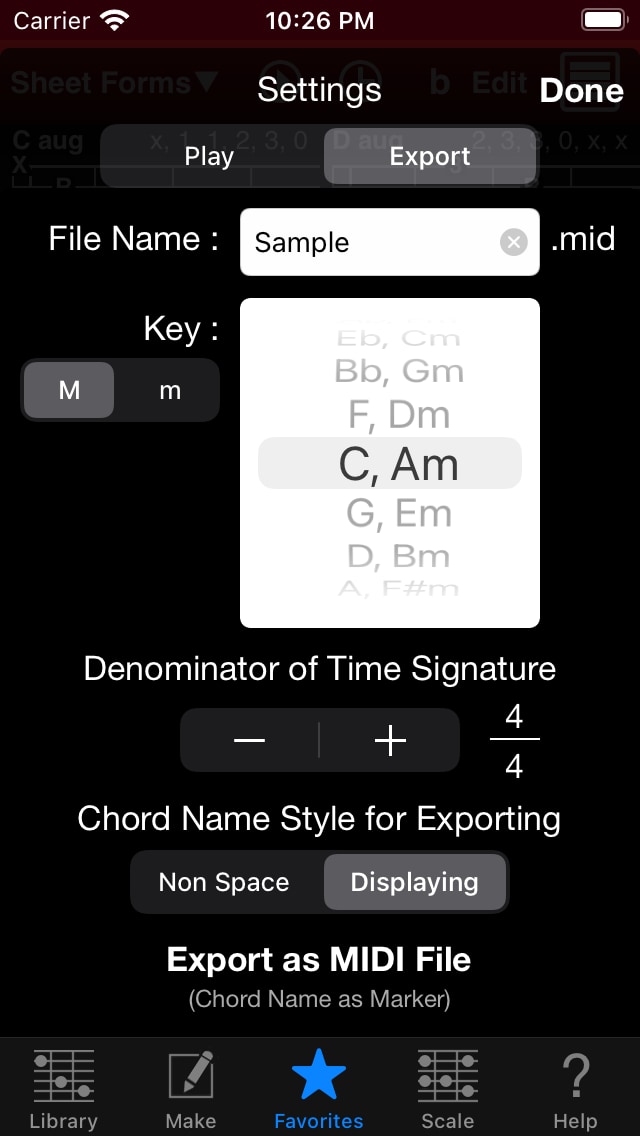
- File Name
- Input MIDI File Name for exporting.
- Key
- Set the Key for Song
- Select Major (M) or Minor (m)
- Denominator of Time Signature
- Decide denominator for Time Signature. Numerator of Time Signature will be set by Beat in Play Settings automatically.
- Chord Name Style for Exporting
- You can select chord name for exporting.
- Export as MIDI File
- Show Export dialog for really exporting as MIDI File.
- Chord Names will be exported as Marker.
- Export omit note as velocity 1 note.
- Guitar Kit check automatically all sheet chord forms exist in Library Tab before exporting. If chord forms don’t exist will be found, you can try automatically add those chord forms as User Chord Forms.
Export
Export Native File or SMF. Automatically show apps. It will take some time to display at the first time.
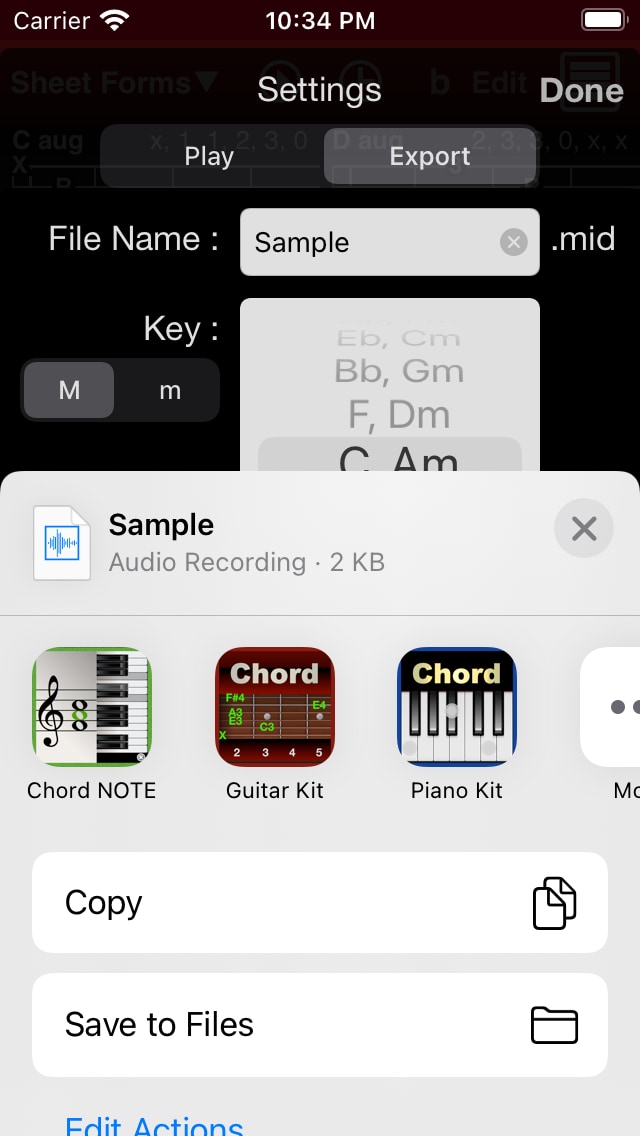
You can use exported MIDI file by Guitar Kit on your DAW (Mac/PC) as Chord Progression. Moreover, Chord Name will be exported as Marker.
Also, you can use as Chord Progression in Chord NOTE and use as Chord Sheet in Piano Kit.
Import
You can import Native File or SMF you exported. Please use your app’s Export / Share function.
Guitar Kit directly import Native File.
If you import SMF, choose Guitar Kit for importing in apps list.
By the way, Guitar Kit only support officially SMF created by Chord NOTE, Guitar Kit and Piano Kit.
If you use this export / import functions, you can replace Sheets immediately. It’s like Save, Open.
Guitar Kit interprets based on chord forms that registered in Library Tab. If there are no chords imported in Library, Guitar Kit shows no matched count in dialog.
In those case, Sheet View shows them as empty chord form or chord form without specific bass. You should show Direct Menu or Name Menu by tapping chord name part, and edit imported notes if you need, and then replace the chord form by tapping “Change” or “Change & Add to Library” button.
Enjoy your Guitar Life! :)
Tips
Q. I’d like to search G major by typing “GM”.
A. Simply type “G”. If chord “G” is not top in list, tap “b” button, you can find top in list because currently Gb is now A#.
Q. Scroll list to top quickly.
A. You can use normal iOS app approach. Simply tap top status bar.
Q. Scroll list to bottom quickly.
A. Tap “User” button.
Q. In Library Tab, I must type chord name from first character exactly?
A. Nop, you can type a part of chord name. (ex. “m7”)
Q. Can I all view all chord forms after focus some chord forms?
A. Tap Chord Name Text Field and tap “x” button for clear all text and “Done” button. Now Chord Name Text Field is empty so you can view all chord forms.
Q. Can I make new chord form again from the beginning at Make Tab?
A. Yes, you tap “x” button beside 1 octave keyboard.
Q. Can I make new chord form as same chord at Make Tab?
A. Yes, you tap Chord Name Text Field and tap “done” button of keyboard.
Q. Enharmonic Equivalents?
A. You can search another chord name for same chord. “+” -> “#”, “-” -> “b”, “maj” -> “M”, “dim7” -> “dim”, “°” -> “dim”, “Ø” -> “m7b5”. And “+5” after Root search as “aug”. You can type “°”, “Ø” by tap and hold “O” or “0” in US keyboard. You don’t have to use them forcibly.
Q. I heard that the Chord Name search engine has expanded some expressions in the version update.
A. Expanded expression of Chord Name search engine. Now supports major, maj, Δ, minor, min, – for M or m.
(Limitation: always “+” is recognized as “#”. And “Root #5” prefix is recognized as “Root aug” prefix.)
Q. I think normally Chord Picker is most first for finding chord form. But it has very huge.
A. Yes. Guitar Kit has very huge chord form types, but you can access very easily by Chord Picker because its ordering is very reasonable. I think you get use to soon.
 RSS
RSS