Chord NOTE support your wonderful Music Life.
Chord NOTE is a Songwriter’s assistant tool.
It assists in finding the right chords to match a melody or musical phrase.
And it has great Chord Progression function and Scale library.
Chord NOTE supports Slide Over and Split View on iPad, and provides the appropriate display and operation for iPhone and iPad.
For iPhone, iPod touch, iPad (Universal App).
Download from here.

You wrote new melody came into your mind, but you could not apply some chords for your melody…
At a time like this, you can get guides to find some chords that match your melody by Chord NOTE.
If you have composed some songs already, you know almost melody and chord have some same notes. Because the main part of melody is made up of constituent notes of chord in most cases.
In the same way, you’ll be able to find Key to match your melody by Chord NOTE.
So Chord NOTE is very useful for finding the chord and key.
If you record your singing melody, you can display the pitch of your voice.
And you can sketch your songs by Chord Progression function.
Chord Progression function will provide numerous features for you.
Chord NOTE supports widening the imagination of your wings for real composer.
If you find files with cloud mark in Files.app, please copy or download with long press gesture.
Advanced Option :
Chord NOTE works fine without this option. However, when you’ll buy this low price add-on, you can use more Chords and Scales. It will provide a complete set usually.
If you have some suggests, requests or questions, please send mail to this address <hidenoridev@therootage.com>.
- Change note (another page)
—
Chord NOTE Help
Table of Contents
- Progression Tab (Chord Progression)
- Title Menu
- Direct Menu (non-Edit mode)
- Name Menu (Edit mode)
- Beat Menu
- Acout Chord Name
- Customize Chord View
- Settings View
- Export
- Import
Quick Start
- You write new melody that hit on.
- You pick up some essential notes (long notes, loud notes…).
- Tap some notes at top keyboard in Key Tab. You have focused on a little Keys. Select a Key in the list. Tap Chord Rule for Chord Tab button in Key Tab.
- Select Triad & Seventh. Select Substitute for Major Key or Substitute for Minor Key, if you know your song is major or minor.
- Now chord list of Chord Tab is narrowed down by Key & Chord Rule.
- Tap some essential notes of your melody at top keyboard in Chord Tab.
- If you can focus on enough less chords, tap the chord or really you play. Let’s consider which chord appropriate to your melody.
- Repeat process 6 & 7 for finding all chords for your melody.
Common
- If you tap the top keyboard, you can search chords, keys and scales by selected notes.
- You can deselect all by tapping “X” button on the left side of keyboard.
- Use “#” (Shift-3), “b” (Small B) as Sharp and Flat for ease of typing.
- You can change note display to Note Name or Interval by long press gesture on the chords list on the fly.
- Each screen has accident (#, b) button and volume slider.
- “G” button allows you to search guitar specific chord forms of selected Chord by Guitar Kit (another app).
- “P” button allows you to search piano specific chord forms of selected Chord by Piano Kit (another app).
- If there are locked icons in the list, you can use those chords by purchasing “Advanced Option” (In-App Purchase).
Chord Tab
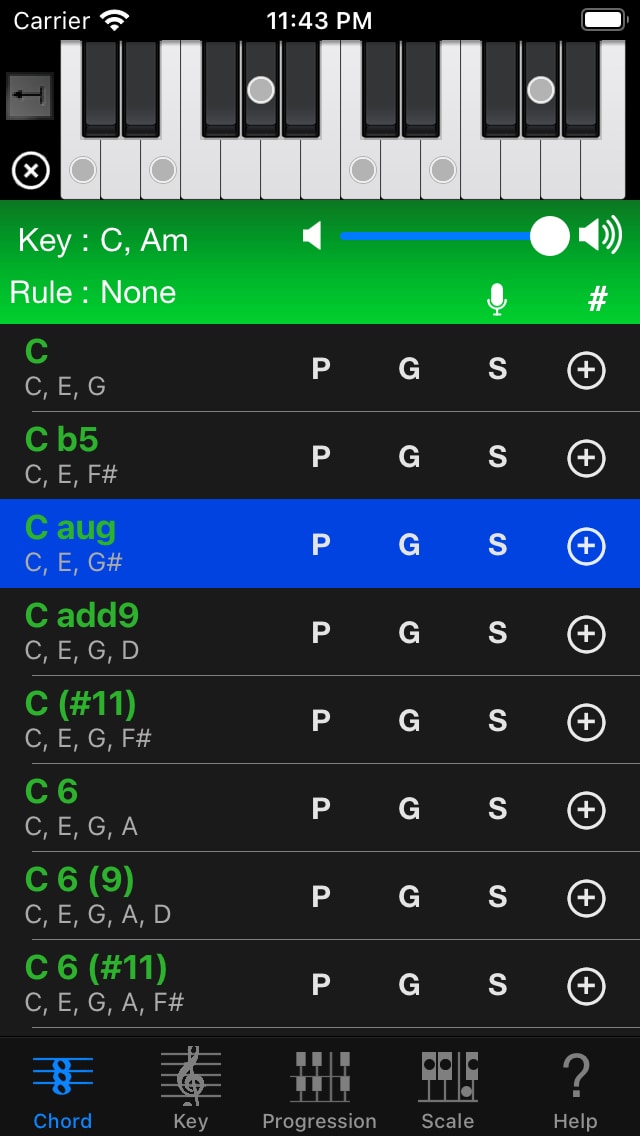
Main Tab. You can search for chords by some specific notes.
- You can select some specific notes by tapping the top keyboard.
You can deselect note by tapping again same note.
And you’ll be able to focus on chords by selecting multiple notes.
Also you can change 1 octave / 2 octave display by tapping arrow icon (Octave button). - Chords list shows chord names & constituent notes of chord.
- You can listen to the chord sound by tapping each chord. And displayed notes constituting of the chord as circle on the top keyboard.
- Chords list shows chords are filtered by Key & Chord Rule. And only shows chords contains selected notes on the top keyboard. You can select Key and Chord Rule in Key Tab.
- If Chord Rule is None, you can display only simpler chords by setting of Limit Chords on Help Tab.
- If you tap “S” button, you can search Scale.
- If you tap “+” button, you can add the chord as Chord Progression to Progression Tab. Descriptions of Progression Tab is given later.
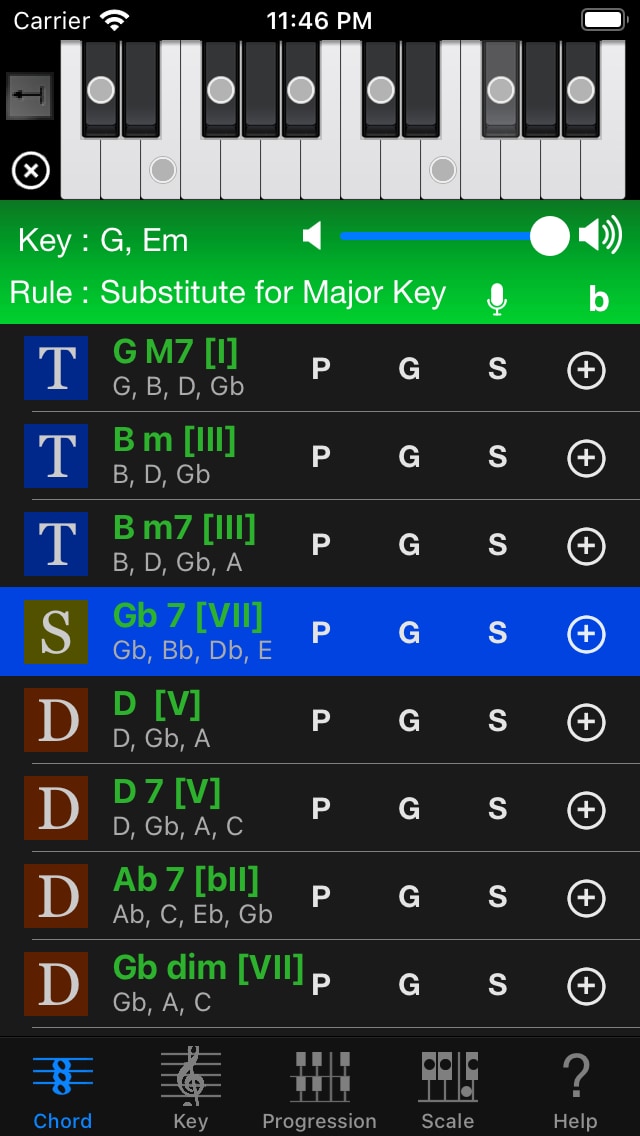
About icon beside Chord Name :
If you set Key and Chord Rule, it will be displayed these icons.
 Tonic,
  Subdominant,
  Dominant
 Subdominant Minor (Basically Chord NOTE handle Subdominant Minor as Subdominant)


 Left is Major Key, Right is Minor Key.
 Tonic,
  Subdominant,
  Dominant
 Subdominant Minor (Basically Chord NOTE handle Subdominant Minor as Subdominant)


 Left is Major Key, Right is Minor Key.
You can record singing melody and display its pitch by tapping Mic button.
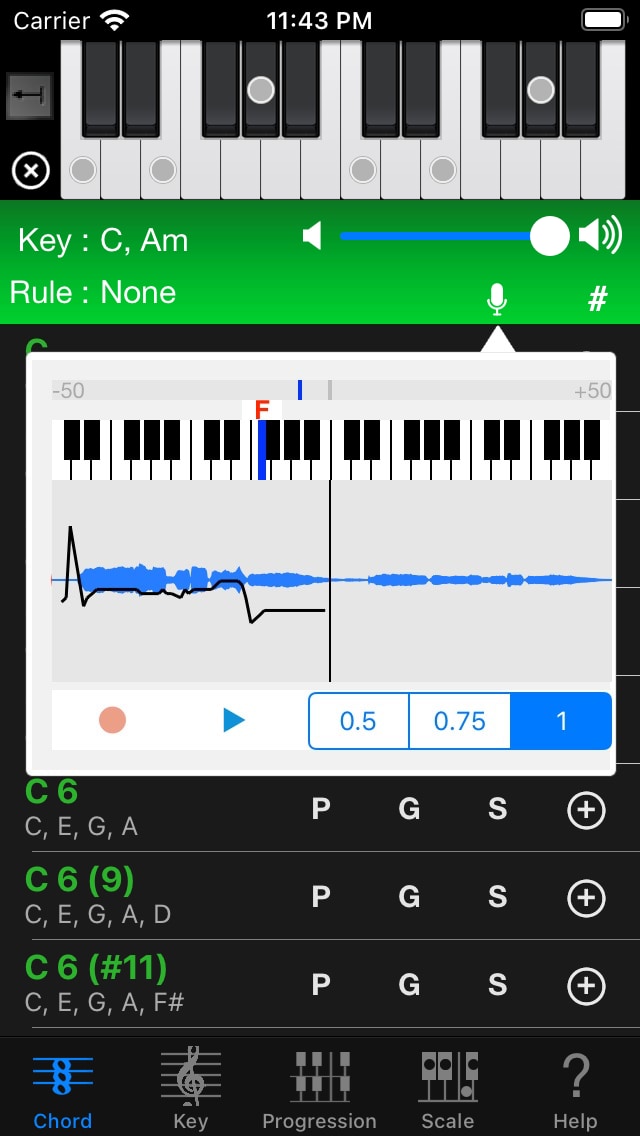
Please give permission to use the microphone when you tap Mic button for the first time. If you do not allow it, let’s permit the use of the microphone in Chord NOTE section or Privacy section of Settings app. In addition, you can open Settings app by tapping Mic button again.
When you are ready, tap red circle Record button. The input sound from the microphone is recorded, and the current pitch is also displayed. Tap the Record button again to stop.
Please tap blue triangle Play button. The recorded melody is played back. The currently playing pitch is displayed, and a graph showing the transition of the pitch is also displayed. You can stop by tapping Play button again.
If you tap Waveform during playback, you can play from tapped location. It will be useful to listen and check the pitch again.
You can change playback speed at any time.
The top blue little vertical bar indicates how well the pitches fit. The closer it is to the middle, the closer it is to the currently displayed pitch, the flat on the left and the sharp on the right.
You can exit this recording mode at any time by tapping outside this popup window.
Key Tab
You can search for keys by some specific notes.
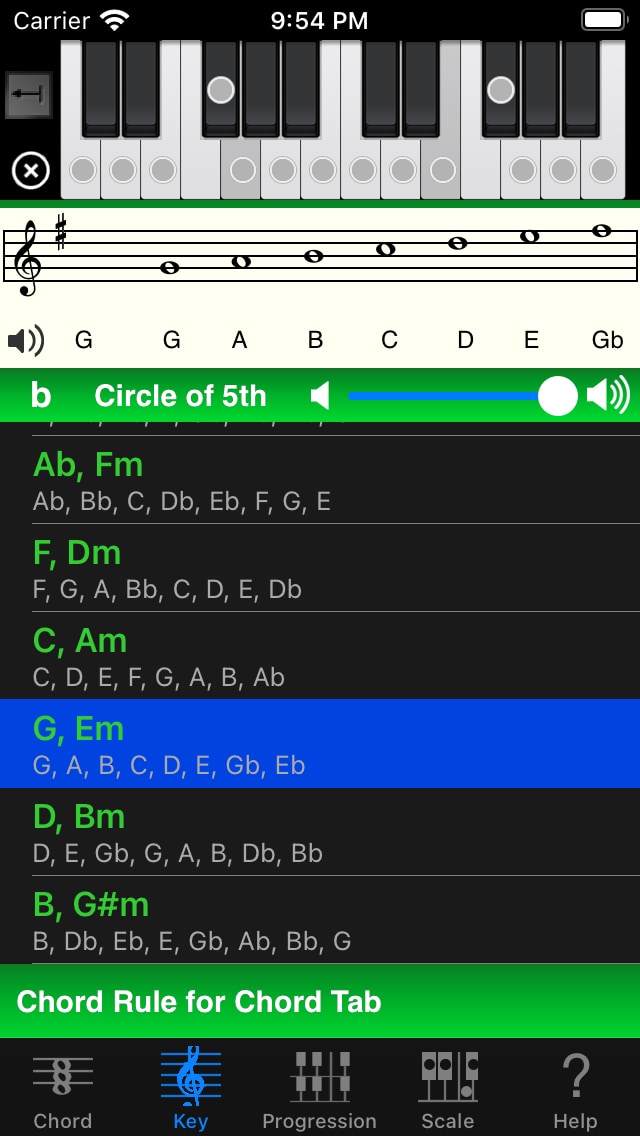
- Please refer to Chord Tab section for basic part.
- Bottom list shows key names and constituent notes of key.
(Maybe you think notes are many, because these are contained Melodic Minor & Harmonic Minor)
If you select one key, upper part show the musical score. 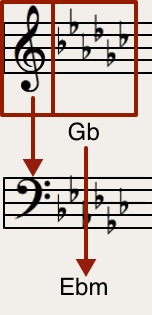 You can change display score style by tapping these rectangle.
- You can toggle play score sounds ON/OFF by tapping speaker icon in the score.
- If you tap “Circle of 5th” button, you can select a key by tapping easily. Circle of 5th is displayed from the beginning in the iPad.
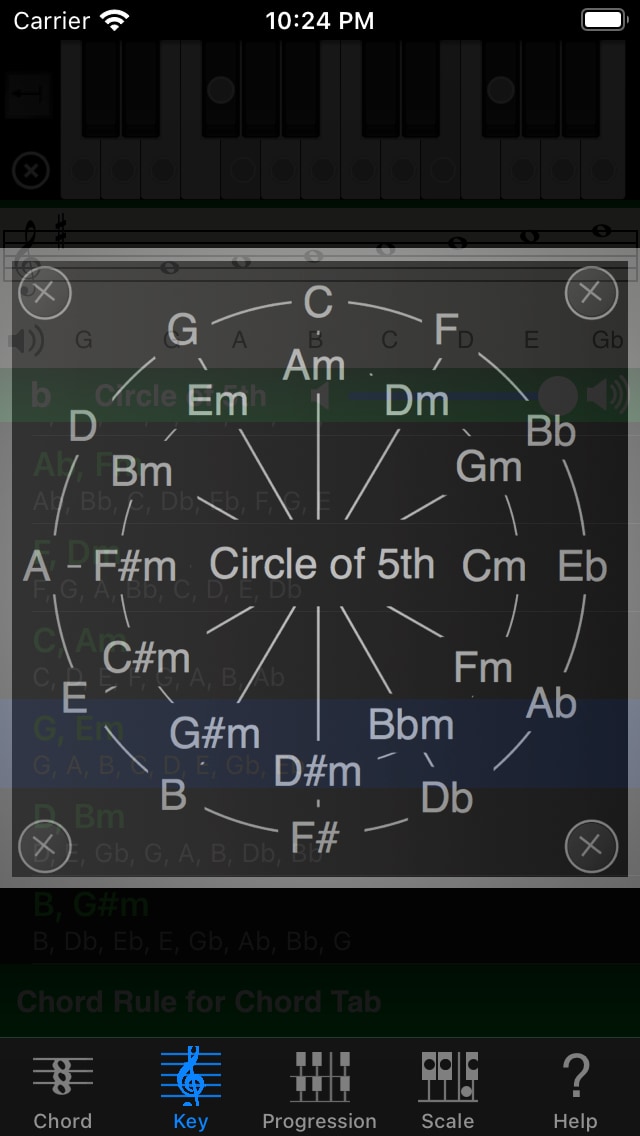
You can display in reverse order by tapping the middle “Circle of 5th” part. (G-C-F…→F-C-G…)
Chord Rule
When Key and Chord Rule are set on Key Tab, chords list displayed on Chord Tab is narrowed down.
It’ll help find chords appropriate for your melody.
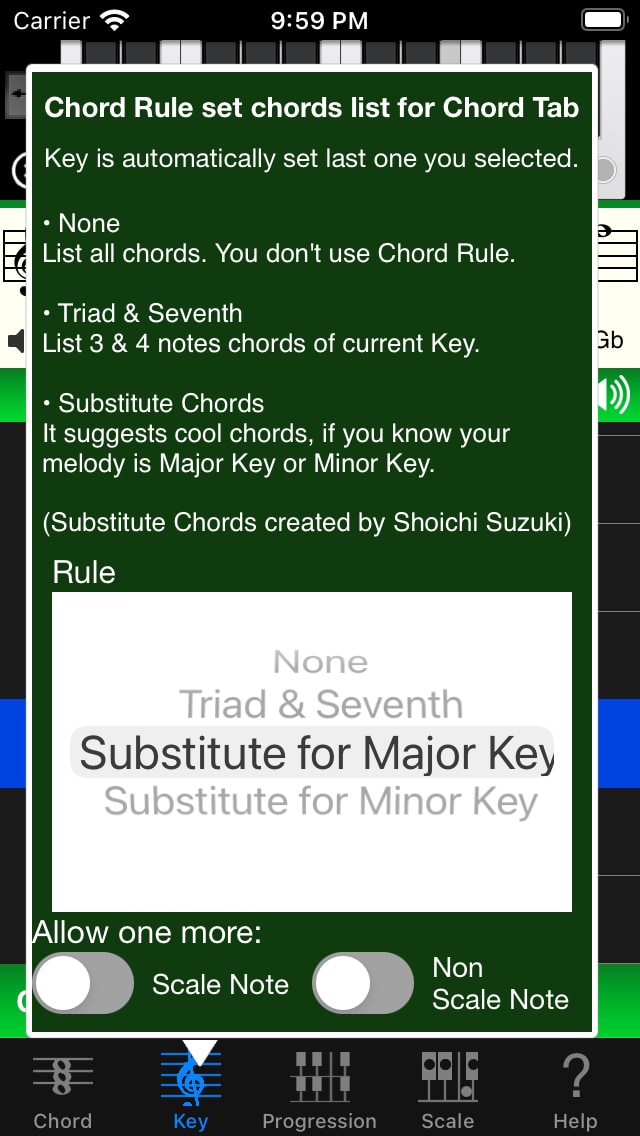
You can select Chord Rule by tapping bottom Chord Rule for Chord Tab button.
Key is automatically set last one you selected.
- None
- List all chords. You don’t use Chord Rule.
This is useful when you just want to know chords that use specific notes or when you want to find chords freely.
- List all chords. You don’t use Chord Rule.
- Triad & Seventh
- List 3 or 4 notes chords of current Key based on music theory. It does not distinguish between Major and Minor.
- Substitute Chords
- List more sophisticated chords in addition to Triad & Seventh. If you know your melody is Major or Minor.
- Allow one more Scale Note
- Add chords that contains one more scale note to chords list. (ex. This is useful when the melody corresponds to the 9th chord.)
- Allow one more Non Scale Note
- Add chords that contains one more non scale note to chords list.
Scale Tab
You can search for many popular scales by tapping notes on the top keyboard.
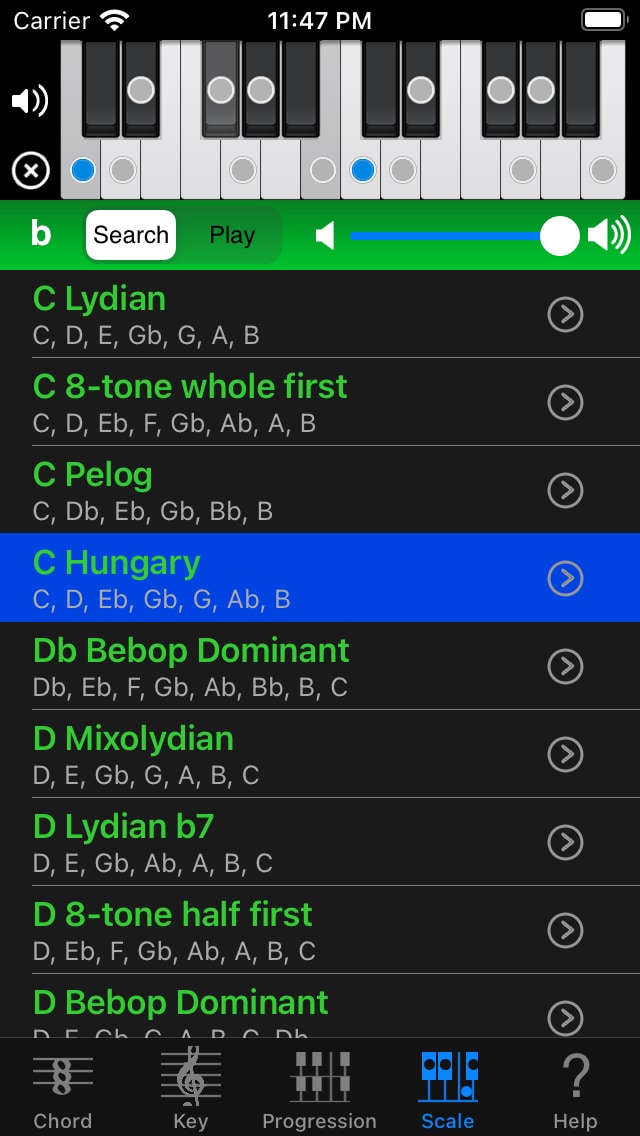
If you select notes on the top keyboard, Scale Tab lists only scales contain their notes.
When you select a scale in the list, scale notes will be displayed with the circles on the keyboard. Blue circles are Root notes.
You can change whether you’d like to play the scale sound by tapping the speaker icon beside the keyboard.
If you select “Play” at “Scale / Play” button, you can listen any note sound by tapping keyboard without changing scale list.
Chord NOTE has following Scales.
Major scales
- Ionian (Major) – Normal Major Scale
- Major Pentatonic – without 4, 7
Minor scales
- Aeolian (Natural Minor) – Normal Minor Scale
- Harmonic Minor – Upped 7 for going easily to root
- Merodic Minor – Upped 7 and 6 too for constant melody interval
- Minor Pentatonic – Minor without 2, 6
The 7 modes
- Dorian – C major scale played from “D” is a D Dorian scale
- Phrygian – C major scale played from “E” is an E Phrygian scale
- Lydian – C major scale played from “F” is an F Lydian scale
- Mixolydian – C major scale played from “G” is a G Mixolydian scale
- Locrian – C major scale played from “B” is a B Locrian scale
Misc
- Blues Major – Major pentatonic scale, but with an additional lowered fifth.
- Blues Minor – Called Blues Scale. Minor pentatonic scale, but with an additional lowered fifth. The lowered fifth, also known as the “blue note”
- Lydian b7 – Lydian b7 is Lydian scale with a lowered seventh
- 8-tone whole first – The diminished scale. Alternating whole step and half step intervals. Whole-step-first.
- 8-tone half first – The diminished scale. Alternating whole step and half step intervals. Half-step-first.
If you purchase “Advanced Option” (In-App Purchase), you can use following Scales.
Symmetrical Scales
- Half diminished – Locrian natural 2. the scale is associated with dim7b5.
- Whole tone – Each note is separated from its neighbors by the interval of a whole step
- Augmented – interlocking combination of two augmented triads: Caug and Ebaug
- Double Harmonic – symmetry around its root
- Bebop Dominant – Major with b7
Local Scales
- Gospel – C Gospel = A Blues Minor. Major Pentatonic with b3
- Eight Tone Spanish – Locrian with 3
- Pelog – Locrian with 7 without 4, b6. one of the two essential scales of gamelan music
- Hungary – Harmonic minor #4
- Ukrainian Dorian – Dorian mode with a raised fourth
- Spanish – Phrygian mode with an additional Major 3rd
- Flamenco – Major b2, b6
- Gypsy – Natural minor #4
- Hawaiian – Major Pentatonic b3
- Hirajoshi – Minor without 4, 7
- Miyako-bushi – Phrygian without 3, 7
- Ryukyu – Major without 2, 6
When you tap “ > ” button on the right side of each scale name, you can display chord list that including only scale notes.
Match View
It shows chords list matched with its scale.
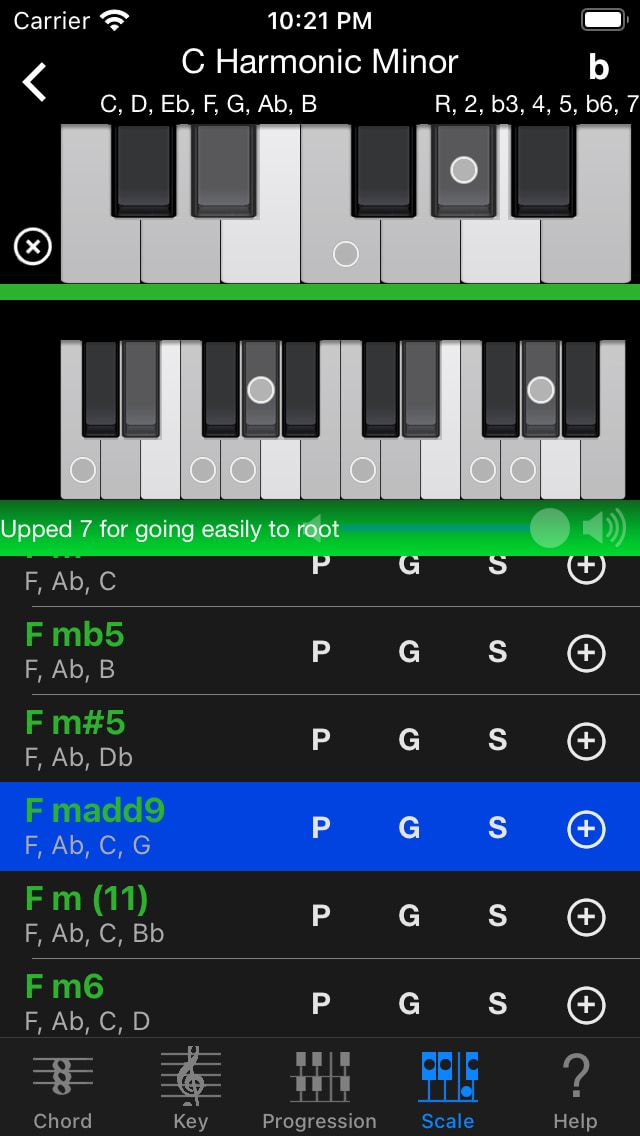
Top 1 octave keyboard shows scale note as gray color. Please tap use notes on the top keyboard in your song’s part. They show circle dots and display bottom chords list matched your scale notes.
You can operate this view as like Chord Tab.
You can display only simple chords by setting Limit Chords on Help Tab.
By tapping “<” button, you can go back Scale lists.
Help Tab
This Tab provide Setting, In-App Purchase, Help and Other Apps.
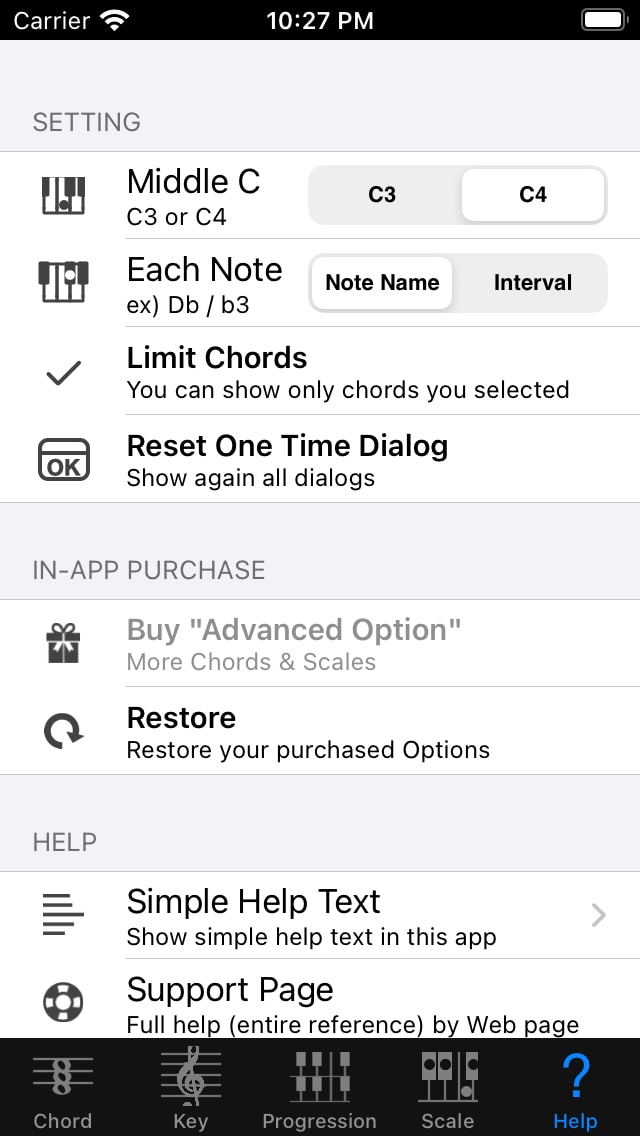
Setting
- Middle C
- Change Middle C to C3 / C4.
- Each Note
- Change display for cell’s note to Note Name / Interval.
- Even if you don’t set it here, you can change it by long press gesture in the chords list.
- Change display for cell’s note to Note Name / Interval.
- Limit Chords
- You can limit showing Chords on Chord Tab for None rule and Match View in Scale Tab to avoid complexity. Preset has All Chords, Up to 4 notes Chords, Up to 5 notes Chords and User Preset. User Preset allows you to show chords you like.
- Reset One Time Dialog
- Show again all dialogs. Almost one time dialogs show hints.
In-App Purchase
- Advanced Option
- You can use more Chords & Scales.
- Restore
- You can restore the purchased option in this app.
※ if you’ll show the display of the re-purchase, you’ll should be feel at ease, normally you’ll not purchase twice.
Help
- Simple Help Text
- Display simple help text.
- Support Page
- You can see the support page in Safari.
- Mail
- You can send mails to the developer.
- If you have some ideas, some wishes or some question, please send mail.
- Rate This App in App Store
- Open Chord NOTE’s page in App Store. You can rate this app and review one for people who download future.
- (If you have any troubles about this app, please send mail instead of this function. Because we need detail informations for resolving those problems.)
- Version number of Chord NOTE in the right lower part.
Other Apps
Open other apps in App Store.
You can use Piano Kit and Guitar Kit as companion apps for Chord NOTE.
Piano Kit and Guitar Kit can show all chords selected in Chord NOTE.
Progression Tab
You can temporarily store Chord Progression.
You can add a chord by tapping “+” button in Chord Tab.
It would be useful to make rough sketch of the chord progression.
This view allows you to operate very variously.
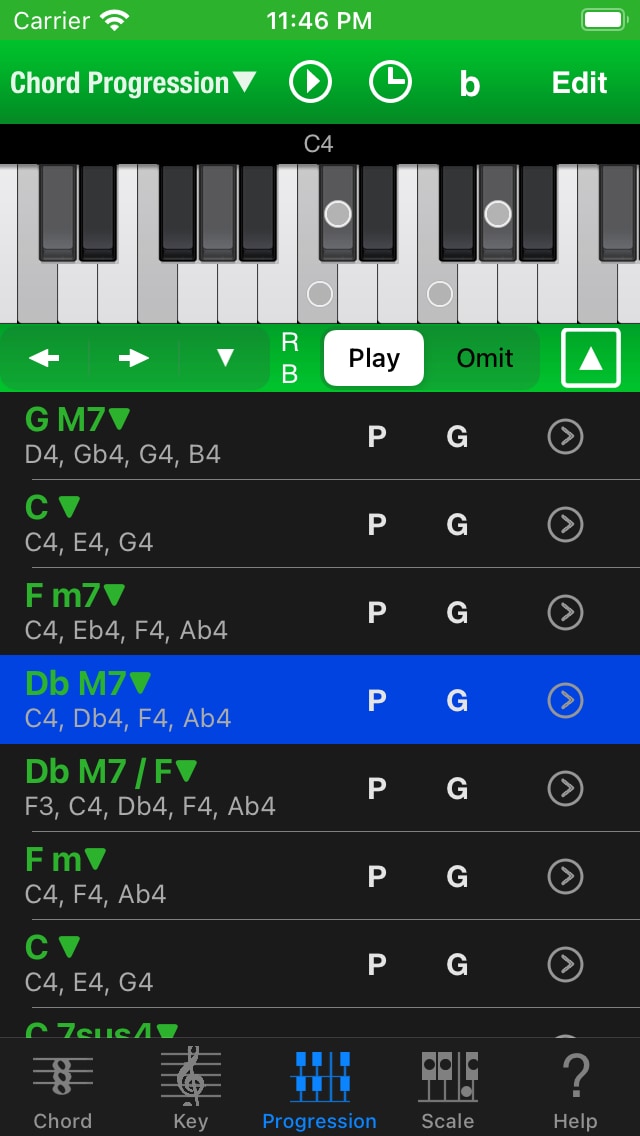
You can enter in Edit mode by tapping right top Edit button. When you’re done editing, you can return to non-Edit mode by tapping Done button.
4 octave keyboard is scrollable.
Play button allows you to play Chord Progression automatically. You can stop by tapping again this button.
Clock button shows Play Settings and Export Settings.
There are several options for editing the selected chord between the keyboard and the chords list.
You can move up / down “Rotate”, “Transpose”, “Octave”. Rotate means Inversion in music theory.
If you’d like to fix most bottom note as Bass, please select “without Bottom”. Otherwise, you’ll probably want to choose “with Bottom”.
Play / Omit button allows you to play or omit tapping note. Omit doesn’t change chord form.
Most right button shows Chord Picker. You can directly change chord to anything.
Title Menu
It shows by tapping left top ChordProgression▼.
By the way, you can undo and redo by swipe left or right gesture in ChordProgression▼.
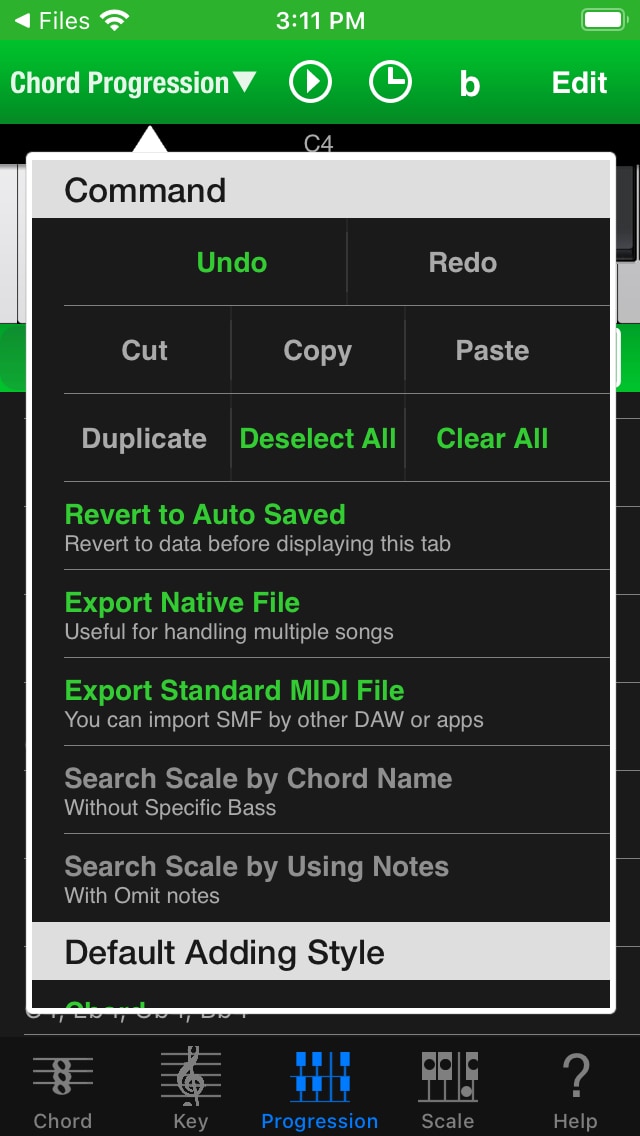
- Command
- Undo, Redo
- Cut, Copy, Paste
- When you paste a chord that you was cut or copied, you can add it to after selected chord.
- The chord of Chord Progression on Chord NOTE is compatible with the chord form of Sheet View on Piano Kit and Guitar Kit (another app).
- Duplicate, Deselect All, Clear All
- Duplicate the selected chord. Add to last.
- Deselect All chords.
- Clear all chords immediately.
- Revert to Auto Saved
- Revert Chord Progression and settings to Auto Saved version at once.
- Chord NOTE save automatically, when you leave Chord Progression Tab. So you can revert to Auto Saved as long as you don’t move to other Tab or Customize Chord View.
- Export Native File
- Export Standard MIDI File
- Show Export Settings to set options for Chord Progression’s SMF. You can export SMF by tapping the bottom button of Export Settings.
- Search Scale by Chord Name
- Search scale by chord name of selected chord.
- Search Scale by Using Notes
- Search scale by using notes of selected chord.
- Default Adding Style
- You can change default style for adding chord to chord progression.
- Chord
- Like as previous Chord NOTE, it will show all notes in one octave. If chord has a special Bass also appears Bass under octave.
- Bass + Chord
- Like as previous Chord NOTE, it will show all notes in one octave. Even if chord does not have a special Bass, also appears Bass under octave.
- Logical
- It will display the first chord form to be made on the theory. Since they are going to pile up on more and more, for example, 9th is beyond the octave.
- Logical with Bass
- It is displayed by the addition of Bass sound under the octave above Logical.
- Option
- Pad Mode
- You can play chord sound by touching any part of each Chord.
In other words, you can focus playing by tapping without worrying about showing menu for editing.
Tips: You can immediately know Pad Mode is ON by checking whether upper right Edit button is Disable (dimmed) when Sheet Play is stopped.
- You can play chord sound by touching any part of each Chord.
- Show Popup Mark
- Show or Hide “▼” mark in non-Edit mode.
- Pad Mode
Pad Mode example
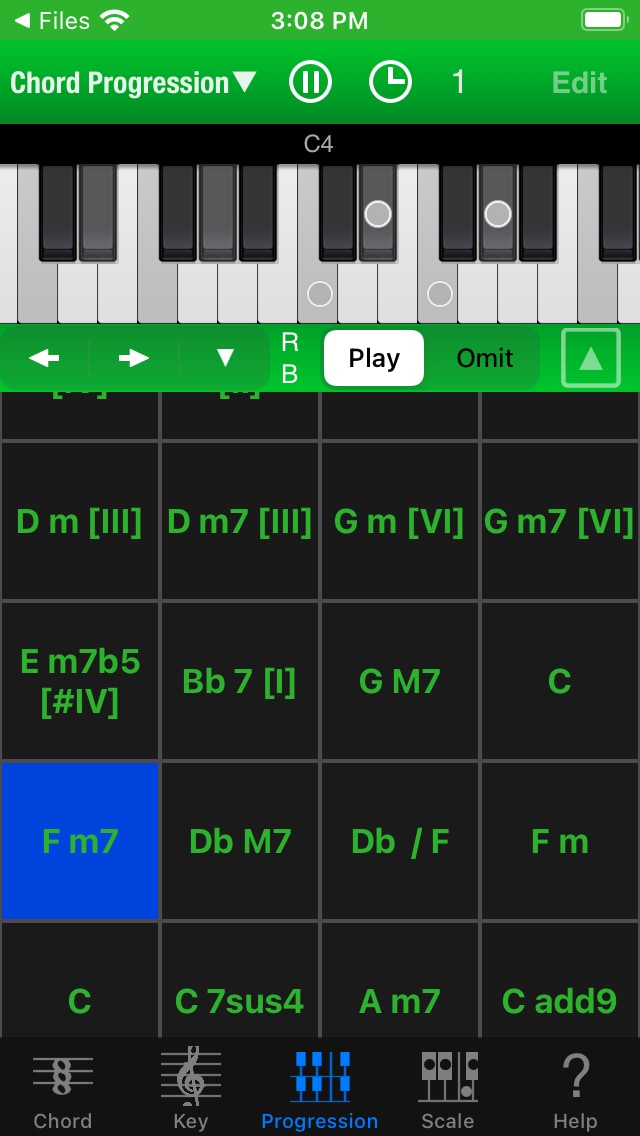
When you tap chord name in chords list, you can show Direct Menu (non-Edit mode) or Name Menu (Edit mode). Direct Menu makes light edits and Name Menu makes deep edits.
Direct Menu (non-Edit mode)
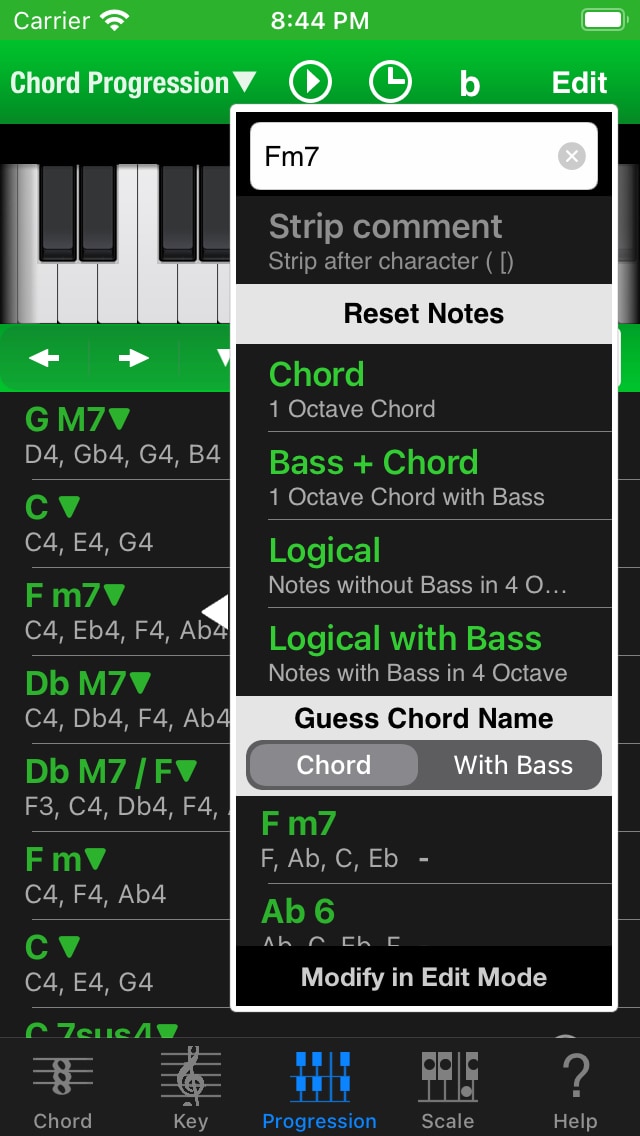
You can change Chord Name directly and set Chord’s notes to specific style.
- Chord
- Like as previous Chord NOTE, it will show all notes in one octave. If chord has a special Bass also appears Bass under octave.
- Bass + Chord
- Like as previous Chord NOTE, it will show all notes in one octave. Even if chord does not have a special Bass, also appears Bass under octave.
- Logical
- It will display the first chord form to be made on the theory. Since they are going to pile up on more and more, for example, 9th is beyond the octave.
- Logical with Bass
- It is displayed by the addition of Bass sound under the octave above Logical.
This menu contains Guess Chord Name function. It will propose some chord names according to notes of the current chord. If you choose one, it is possible to change the chord name.
- Left side is used note names. Right side is unused note names. Normally chord that has less unused note names is better.
- If you select “with Bass”, you can choose /Bass.
Name Menu (Edit mode)
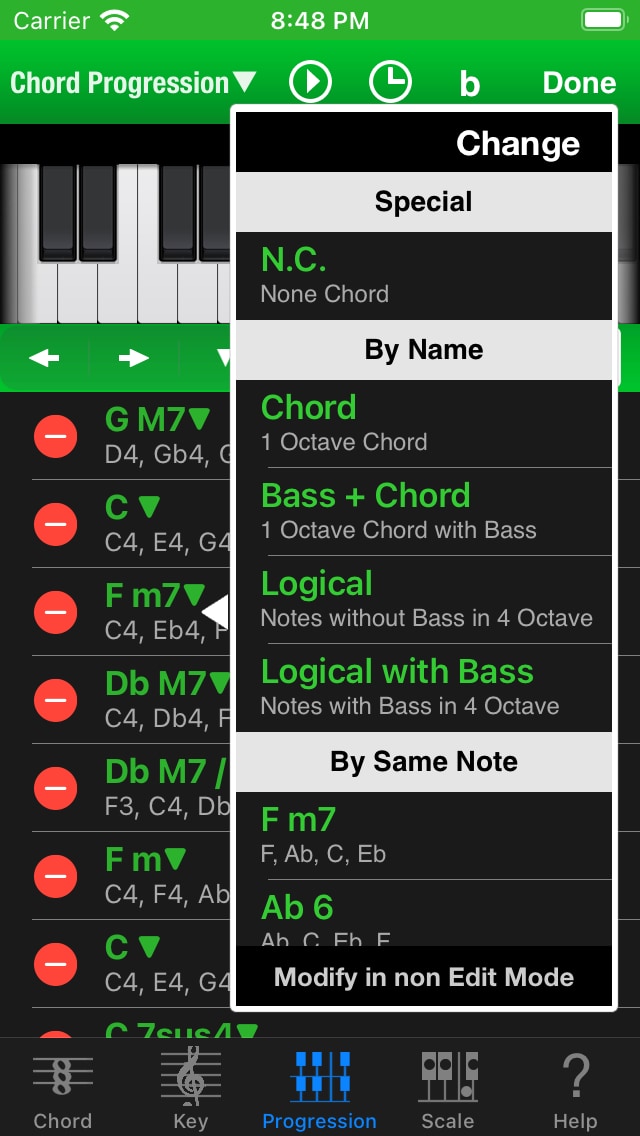
You can change Chord Form to N.C. / By Name / By Same Note / By Similar Note (Move, Remove, Add).
N.C. is None Chord. Chord NOTE play no sound.
Similar Note shows similar chord forms (move 1 note, remove 1 note, add 1 note).
You can try to hear chord sound by tapping the chord. Really you decide, please tap upper “Change” button.
You’d like to cancel, please tap outside of this menu.
Beat Menu
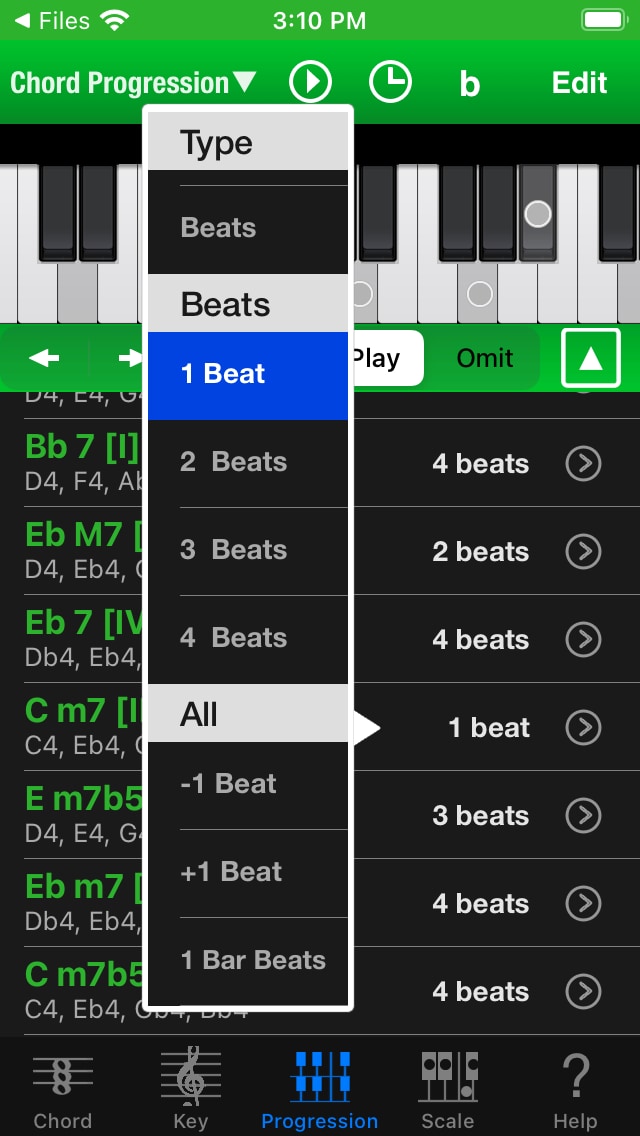
You can change right part of chords list (None / Buttons / Beats) and change beat counts for the chord. You can also reset the number of beats in all chord to the number of beats in one bar.
About Chord Name
You can change chord name to any text. Chord NOTE is flexible. However, the idea that follow Chord NOTE style is useful.
It is very simple.
For example, you type “GM7/B [IV]”.
This resolve into Root (first 1 or 2 characters), Chord Name (Chord Symbol), Bass (after slash), Comment (after space & [).
In this case, Root : G , Chord Symbol : M7 , Bass : B , Comment : IV.
- Lowercase and uppercase are different text. For example, M is major, m is minor.
- You cannot omit “(” and “)”. These have an important meaning in chord name.
- You don’t have to worry about space character without comment symbol ” [“. (space and square brackets)
Yes, it’s almost same as music theory. The only special practice is the 3) comment symbol.
By the way, because of the ease of input name, respectively sharp and flat, Chord NOTE use # (Shift-3) and b (Small B).
If you use this Chord NOTE style, you can use it to search on Chord NOTE, Guitar Kit and Piano Kit without any modifications.
You can see this style in “Customize Chord View” on Progression Tab. Please tap “>” button of each chord.
Customize Chord View
You can edit each chord in Chord Progression.
Add specific bass note (F/E), modify your chord (A ->Aadd9, Asus4), and more …
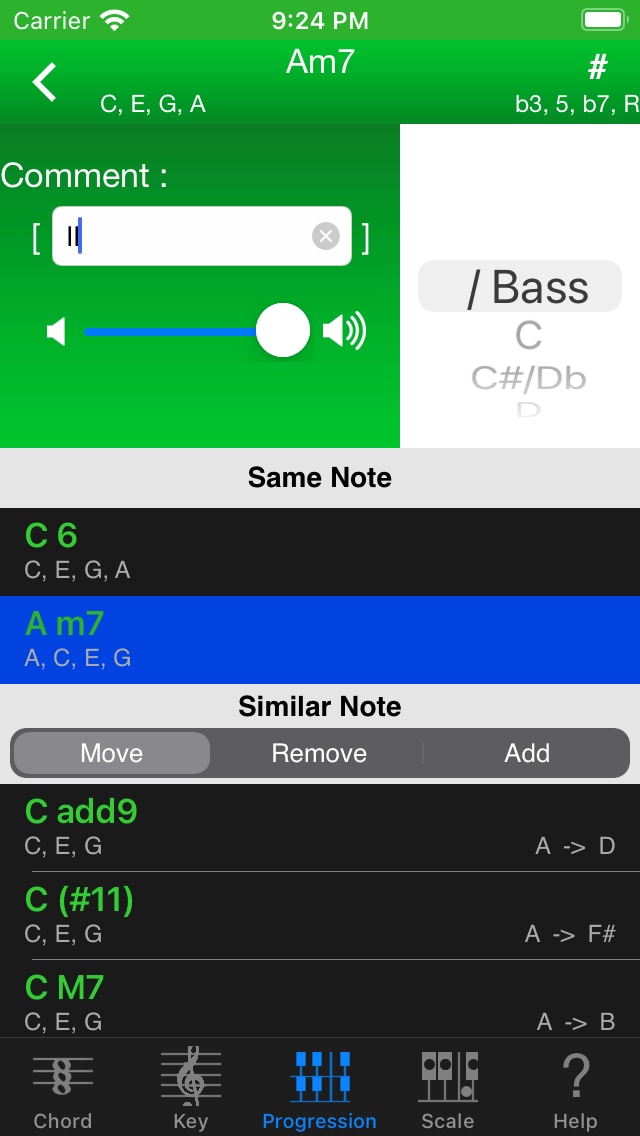
- If you tap left top “<” button, you can back to previous page.
- Right wheel allows you to change Bass note.
- Comment text field allows you to add, remove or change comment of chord. ex) [IV]
- You can change chord directly by selecting in bottom chords list.
Settings View
You can show Play Settings and Export Settings by tapping clock icon on Chord Progression View.

Play Settings
- BPM
- Beat count per 1 minute (about denominator of Time Signature is 4)
- Beat
- Beat count per 1 Bar
- You can change up to 99. If you press and hold ” – ” ” + “, can change continuously.
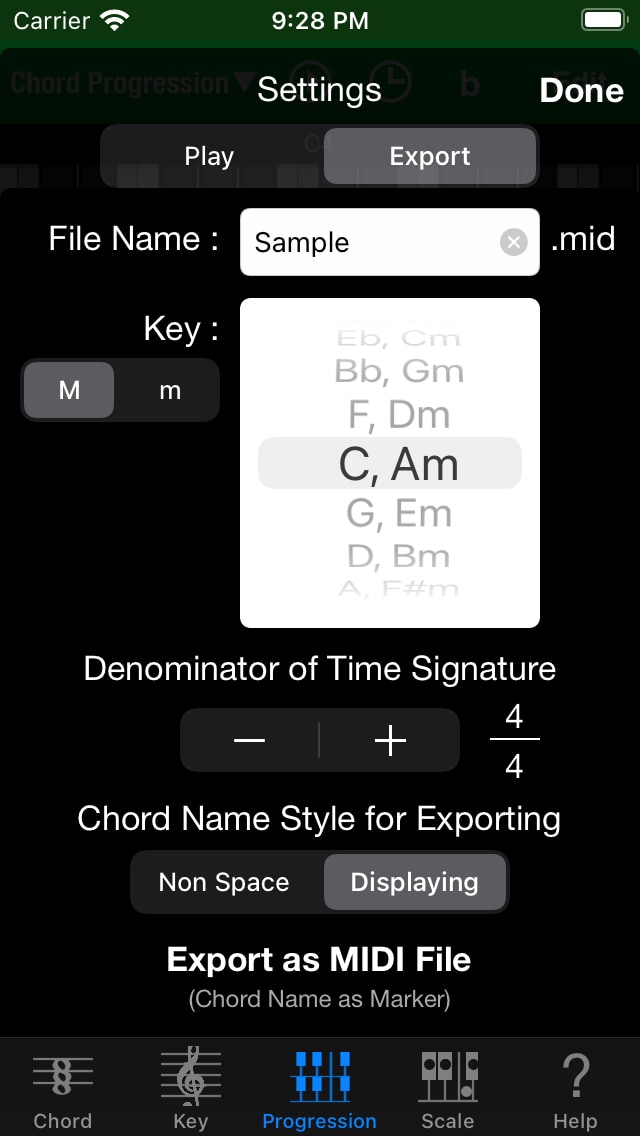
Export Settings
- File Name
- Input MIDI File Name for exporting.
- Key
- Set the Key for Song
- Select Major (M) or Minor (m)
- Denominator for Time Signature
- Decide denominator for Time Signature. Numerator of Time Signature will be set by Beat in Play Settings automatically.
- Chord Name Style for Exporting
- You can select chord name for exporting.
- Export as MIDI File
- Show Export dialog for really exporting as MIDI File.
- Chord Names will be exported as Marker.
- Export omit note as velocity 1 note.
Export
Export Native File or SMF. Automatically show apps. It will take some time to display the first time.

You can use MIDI file exported by Chord NOTE on your DAW (Mac/PC) as Chord Progression.
In addition, it is possible to import by Piano Kit or Guitar Kit. So you’ll be able to use the piano or guitar-specific chord forms.
Import
You can import Native File or SMF you exported. Please use your app’s Export / Share function.
Chord NOTE directly import Native File.
If you import SMF, choose Chord NOTE for importing in apps list.
By the way, Chord NOTE only support officially SMF created by Chord NOTE, Guitar Kit and Piano Kit.
If you use this export / import functions, you can replace Chord Progression immediately. It’s like Save, Open.
Enjoy your Music Life! :)
 RSS
RSS