Archive for the ‘iPhone / iPod touch / iPad’ Category
Kappa Theater includes English text by professional translator in addition to original Japanese text.
If you are non native English speaker, you might want to display Kappa Theater in English.
Of course you can change the system language in “Settings” app.
In iOS 8 There are even more better way.
You can edit “Preferred Language Order” in “Settings” app.
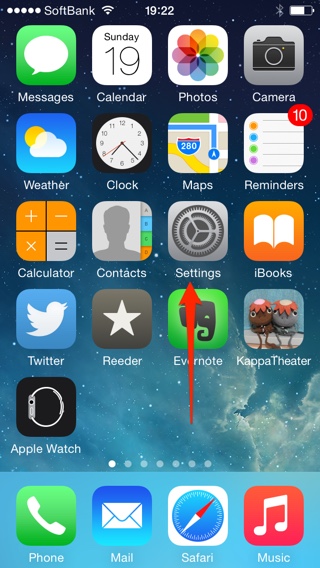
Tap “Settings” app.
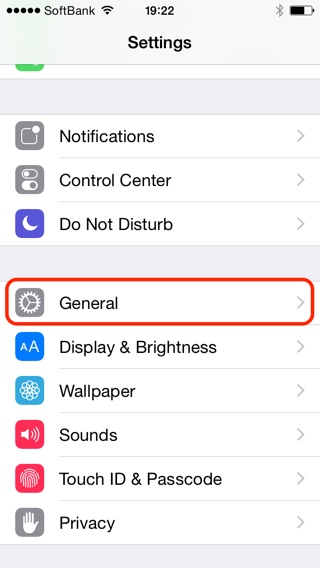
Select “General”.
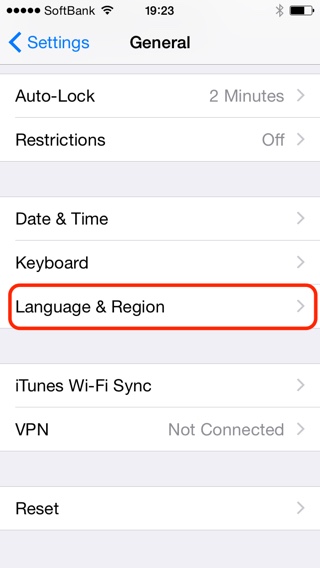
Scroll down and Select “Language & Region”
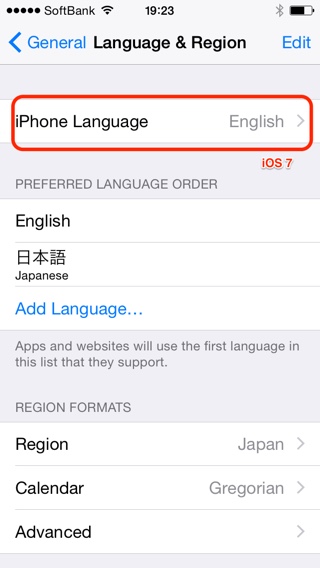
Until iOS 7 in this scene, you had to change the order by changing System Language.
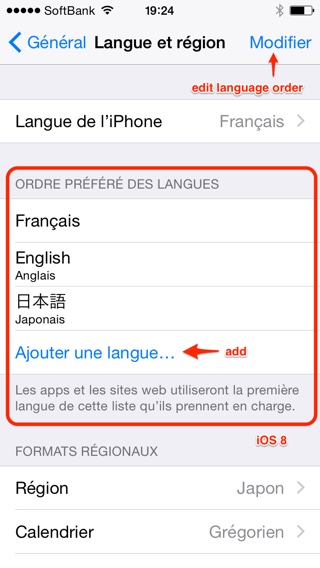
System language is not changing In iOS 8 , you can change the order of the language by “Preferred Language Order”.
In this example, System language is still French, will be displayed in French, English, in the order of the Japanese.
Since Kappa Theater can be displayed in English, in this case the system language remains French, Kappa Theater will be displayed in English.
You can tweet with a picture from Kappa Theater!
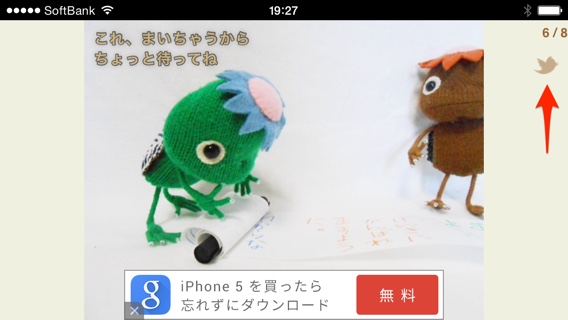
このようにデバイスを横向きにすると、右上にツイートボタンが現れます。
これをタップすると、次のようにツイート画面が表示されます。
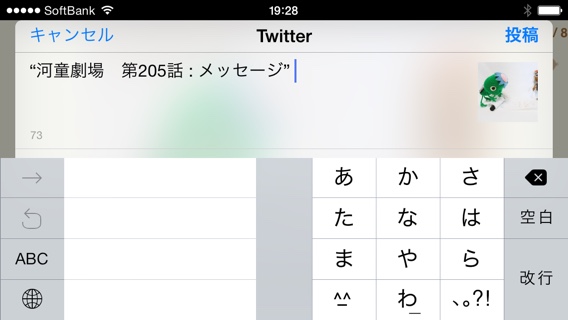
見にくかったら、ここでデバイスを縦にしても構いません。
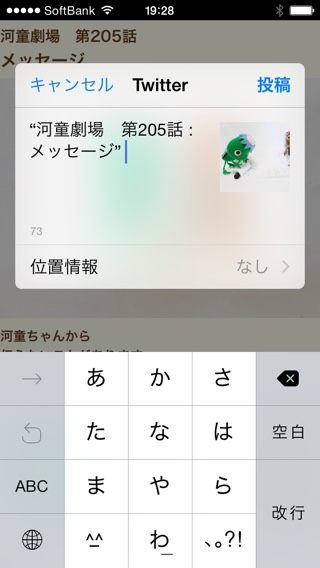
こんな感じでツイートできます♪
楽しんでくださいね!
河童劇場(日本語ページ)
//therootage.com/iphone/kappa-theater-ja/
Kappa Theater(English Page)
//therootage.com/iphone/kappa-theater-en/
Kappa Theater will ask you to allow Push Notifications the first time it is launched.
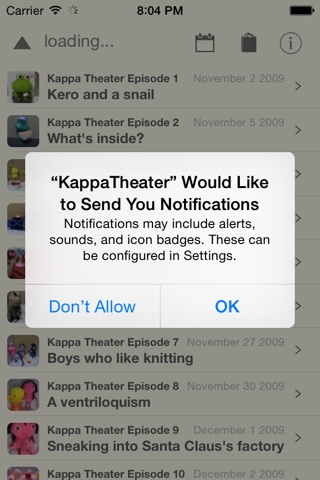
If you tap “OK”, you’ll be able to know right away when there is a new episode update.
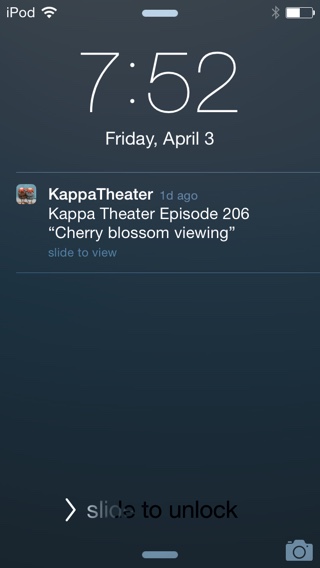
When your device is locked
When you are using other app
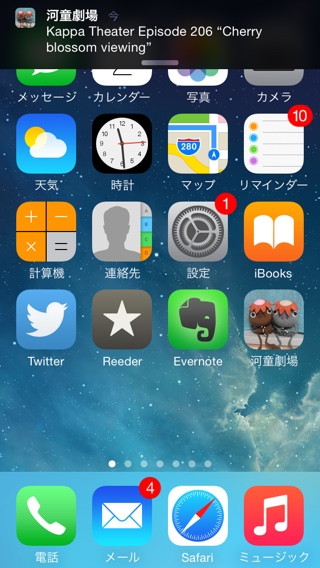
This notification is very silent, so they won’t get annoying.
I’m afraid to miss this notification.
You can check this, by swipe down gesture from upper of display. You can get new episode updates.
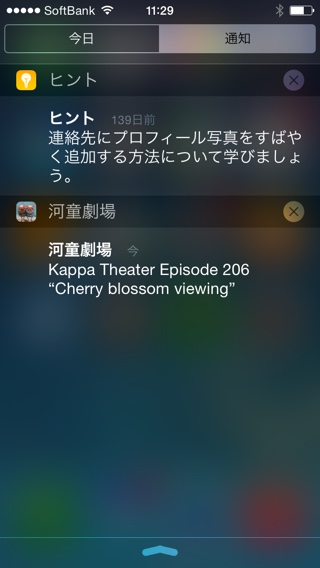
If left “Today” is selected, you should tap right “Notification”.
When you tap information about Kappa Theater, you can read new episodes.
―
If you did not allow Push Notification at the first time it is launched, you can allow this later.
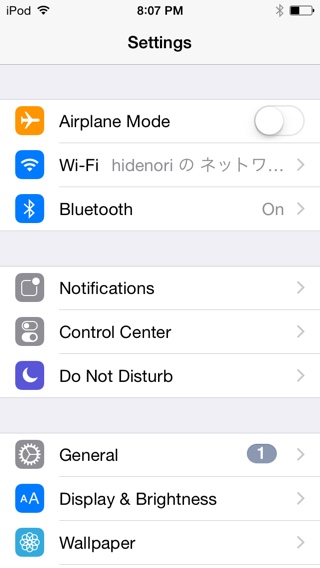
Tap “Settings” app and tap “Notifications” item.
If you tap upper right “Edit” button, you can change order notification items.
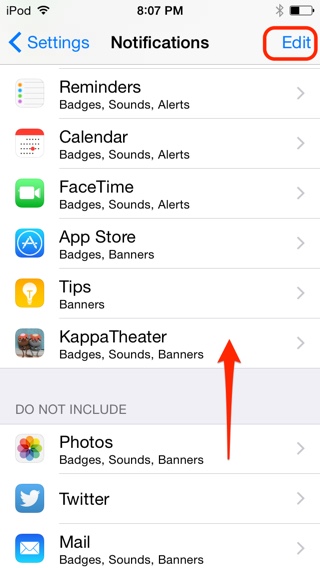
You can put “Kappa Theater” up on the “Include” from “Do not include”.
And also if you use iOS 8 or later, You can view “Kappa Theater” setting in bottom app list when you launch “Setting” app.
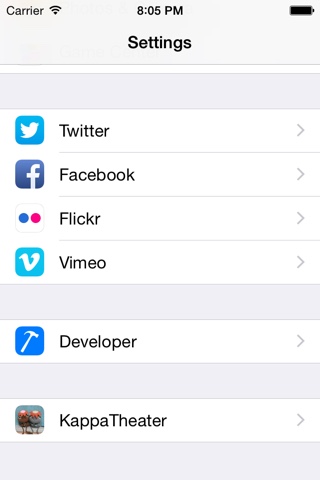
If you tap this
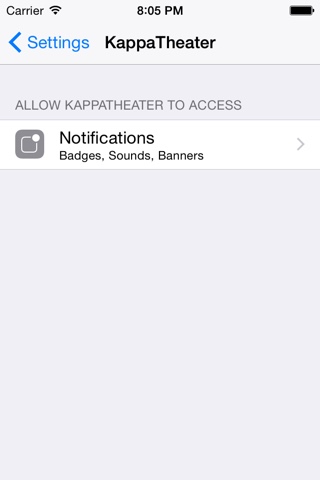
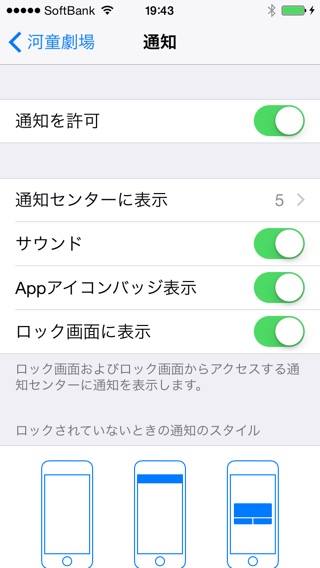
You can turn on notifications for Kappa Theater very easily.
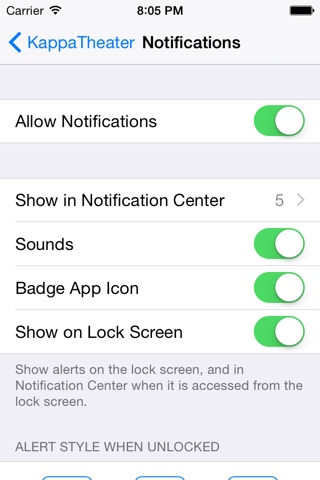
You will only receive important notifications from Kappa Theater about new episode updates.
There will usually only be around 4 episode updates per month, so they won’t get annoying.
We recommend that you allow Push Notification.
Enjoy reading Kappa Theater!
河童劇場は初回起動時に
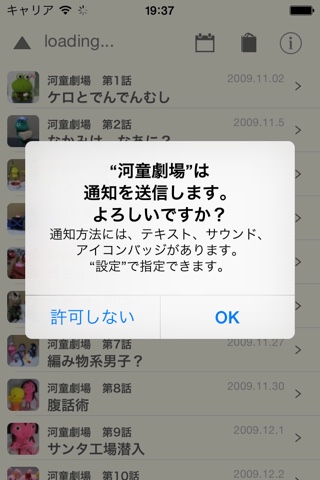
このようにプッシュ通知の許可を求めます。
この時「OK」をタップすると、河童劇場の新しいお話が更新された時に通知を受けることができます。
ロックされているときは
このように。
他のアプリを使ってる時は
こんな感じで上の方に、音もなく極めて静かに、みなさんの邪魔をしないようにお知らせします。
あまりにも静かで一瞬のことで、もしかしたら気づかない人もいるかもしれません。
そういう時は画面上から下にスワイプすると、次のように通知画面を表示することで更新情報を得ることができます。
スワイプして出てきた画面の上の方で「今日」が選択されている場合、「通知」をタップして切り替えてください。
更新情報の部分をタップすると河童劇場が起動しますので、すぐにお話をチェックできます。
ーー
もし初回起動時に、プッシュ通知を許可しなかった場合でも後から許可することができます。
「設定」アプリを起動して、「通知」をタップして、
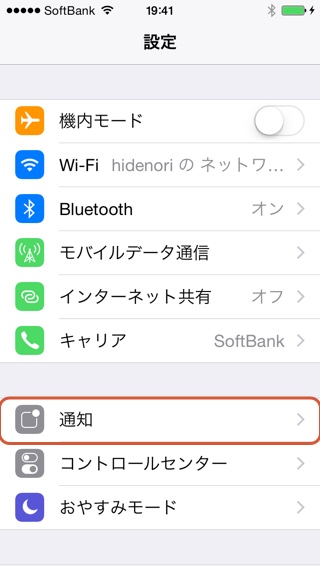
次の画面の右上の「編集」をタップすると、通知の表示の順番を入れ替えることができます。
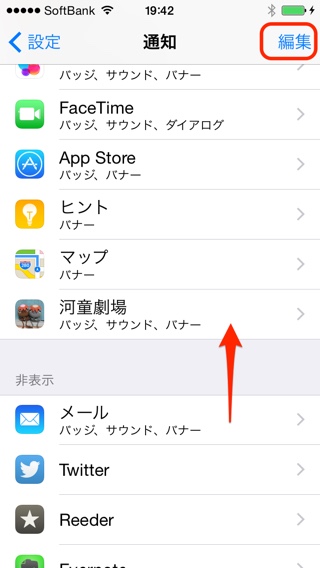
この画面で、上のように河童劇場を通知する方まで上げてやることができます。
また、iOS 8以降では、「設定」アプリを起動した画面に自動的に一番下の方の設定項目のあるアプリリストに「河童劇場」の項目もできています。
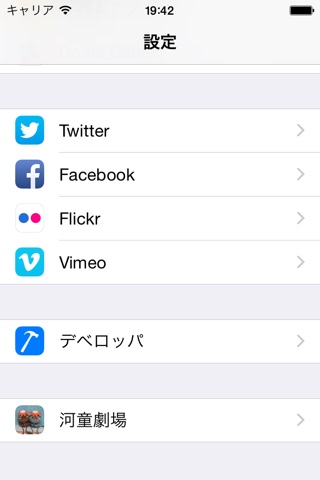
これをタップすることで
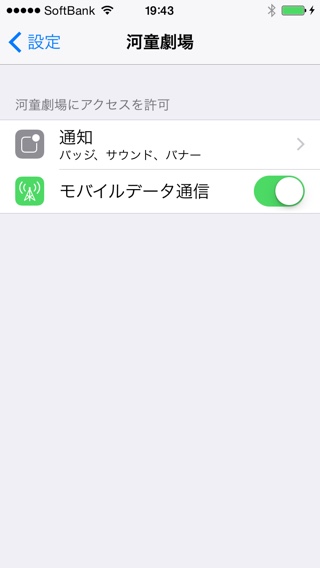
このように通知設定を簡単にON/OFFできます。
河童劇場のプッシュ通知は新しいお話があった時しか、通知しないので邪魔になりません。
ぜひ、プッシュ通知をONにして、河童劇場を楽しみましょう♪
Guitar Kitはver 5.0から、Piano Kitはver 2.0から、コードやスケールの構成音を音名だけでなく、インターバル(間隔)でも表示できるようになりました。
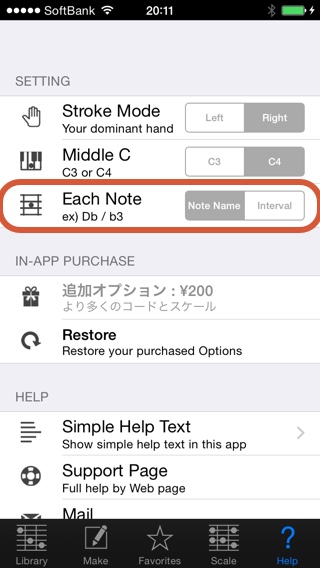
HelpタブのSettingにあるEach Noteで、設定を変えられます。
でも、いちいちこの画面で変更するのは面倒ですよね?
ですから、Guitar KitでもPiano Kitでも該当部分を長押しすると、Note Name / Intervalが切り替えられるようになっています。
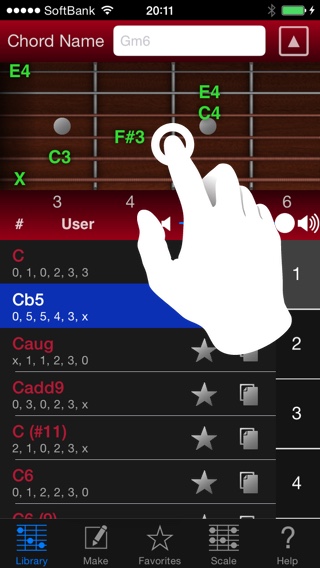
Guitar Kitでは上のように、ギターのフレット(絵)の部分を長押しするとNote Name / Intervalが切り替わります。
(Press & Hold the Guitar fret picture)
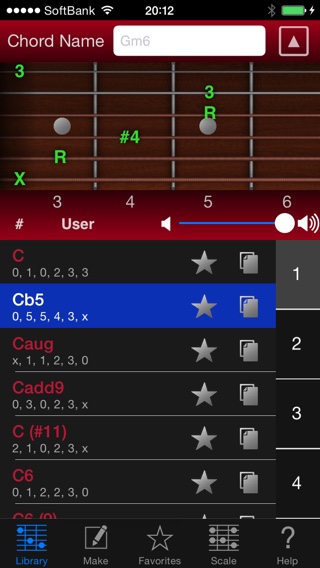
Note NameとIntervalの表記を行ったり来たりできるので、ちょっと確認したいって時なんかにも便利ですよね!
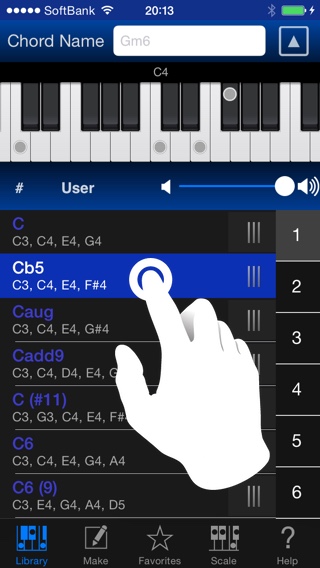
Piano KitではコードのCellを長押しすることで変更できます。
(Press & Hold the cell)
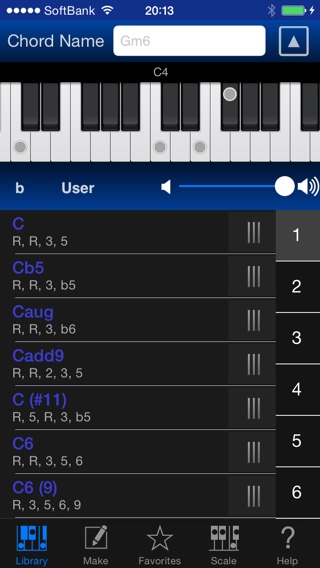
Intervalは基本0 (R)~8の間隔で表示しますが、アルゴリズムで計算して一部、楽典的に13などとコード名に則した表示になります。(今後さらにコード名に準拠した表示にするかもしれません)
これらの機能はいろいろなタブの同じような場所で機能しますので、どうぞ活用してください!
Guitar Kitについて
日本語
//therootage.com/iphone/guitar-kit-ja/
English
//therootage.com/iphone/guitar-kit-en/
Piano Kitについて
日本語
//therootage.com/iphone/piano-kit-ja/
English
//therootage.com/iphone/piano-kit-en/
 RSS
RSS